





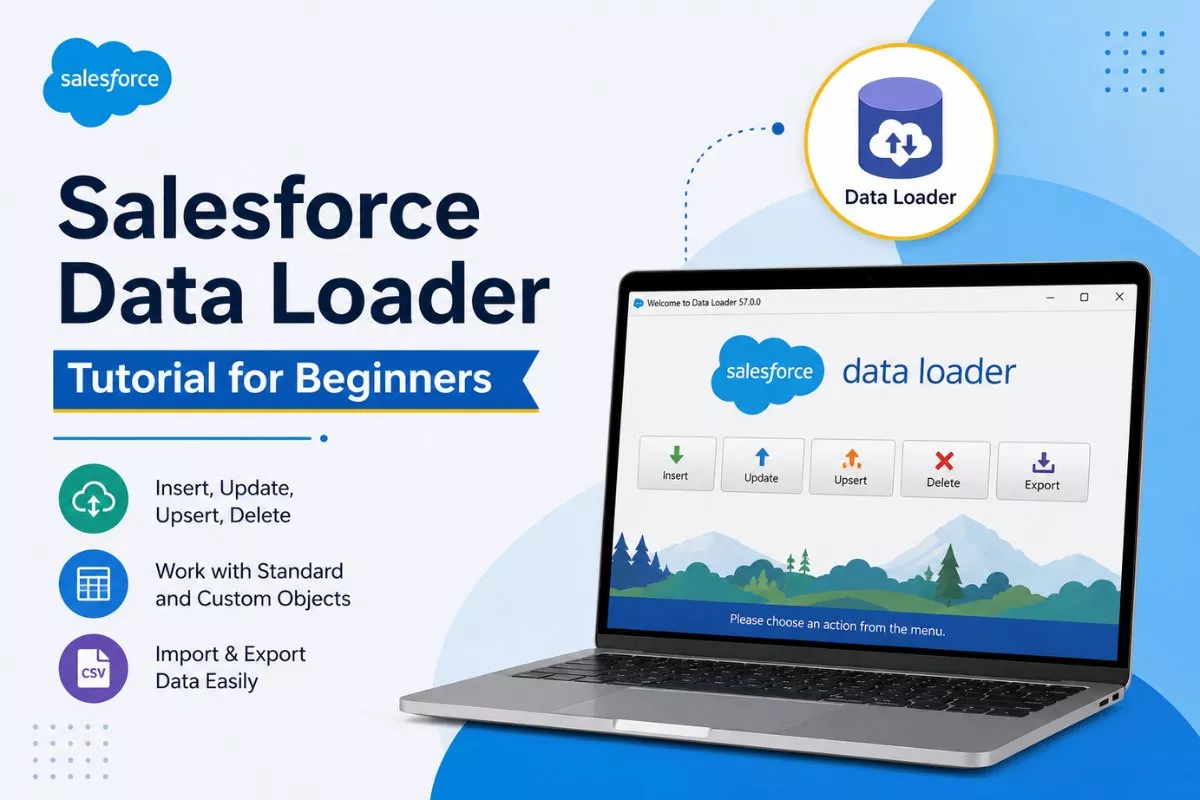
Salesforce Data Loader Tutorial for Beginners is one of the most practical topics for Salesforce Admins and Developers who regularly work with large amounts of data.
While Salesforce provides tools like Import Wizard for simple imports, Data Loader is designed for advanced operations such as bulk insert, update, upsert, delete, and export.
If you are learning Salesforce administration or development, understanding Data Loader is extremely important because almost every real Salesforce project involves data migration or bulk data handling.
In this guide, you’ll learn:
- What Salesforce Data Loader is
- How to install Data Loader
- How to import and export records
- Insert vs Update vs Upsert
- Common errors beginners face
- Best practices for safe data loading
What Is Salesforce Data Loader?
Salesforce Data Loader is a desktop application used to manage large volumes of Salesforce data.
It allows users to:
- Insert records
- Update records
- Upsert records
- Delete records
- Export records
- Export all records including deleted data
Unlike the Salesforce Import Wizard, Data Loader supports millions of records and advanced data operations.
Real Example
Imagine a company migrating 50,000 customer records from Excel into Salesforce.
Using manual entry would take days.
Instead, admins use Salesforce Data Loader to upload all records in bulk within minutes.
Salesforce Data Loader vs Import Wizard
Many beginners get confused between these two tools.
Here’s the simple difference:
| Feature | Data Loader | Import Wizard |
|---|---|---|
| Record Limit | Up to 5 million | Up to 50,000 |
| Export Data | Yes | No |
| Delete Records | Yes | No |
| Automation Support | Yes | No |
| Advanced Mapping | Yes | Limited |
| Best For | Large data operations | Small imports |
If you only need simple lead imports, Import Wizard works well.
However, for advanced operations, Salesforce Data Loader is the better choice.
How to Download Salesforce Data Loader
Follow these steps to install Salesforce Data Loader.
Step 1: Open Salesforce Setup
In Salesforce:
- Click the Gear Icon
- Open Setup
Step 2: Search for Data Loader
In Quick Find:
Search for:
Data Loader
Then open the Data Loader page.
Step 3: Download the Installer
Choose the correct installer for your operating system:
- Windows
- macOS
Step 4: Install the Application
Run the installer and follow the setup instructions.
After installation completes, launch Data Loader.
Prerequisites Before Using Salesforce Data Loader
Before using Salesforce Data Loader, make sure you have:
- Salesforce login credentials
- API Enabled permission
- Proper object permissions
- CSV files prepared correctly
- Java installed (if required by your version)
How to Log In to Salesforce Data Loader
When opening Data Loader:
- Click Password Authentication
- Enter:
- Username
- Password
- Security Token
- Choose:
- Production
- Sandbox
Then click Login.
Tip for Beginners
If your login fails, reset your Salesforce security token.
You can reset it from:
- Settings
- My Personal Information
- Reset Security Token
Salesforce Data Loader Operations Explained
Salesforce Data Loader supports several important operations.
Let’s understand them with real examples.
Insert Operation
Insert creates new records in Salesforce.
Example
You have a CSV file containing:
- New Accounts
- New Contacts
- New Leads
Using Insert adds those records into Salesforce.
Steps
- Open Data Loader
- Click Insert
- Select Object
- Upload CSV file
- Map fields
- Run operation
Update Operation
Update modifies existing Salesforce records.
Example
Suppose customer phone numbers changed.
Instead of editing records manually, you can update all records using Data Loader.
Important
Update requires Salesforce Record IDs.
Upsert Operation
Upsert means:
- Update existing records
- Insert new records if they do not exist
This is one of the most powerful Data Loader features.
Real Example
A company uploads customer data daily.
Some customers already exist.
Some are new.
Using Upsert automatically handles both situations.
Delete Operation
Delete removes records from Salesforce.
Example
You imported incorrect test data.
Instead of deleting records one by one, Data Loader can remove them in bulk.
Warning
Always export backup data before performing delete operations.
Export Operation
Export retrieves Salesforce data into CSV format.
Example
Admins often export:
- Leads
- Accounts
- Opportunities
- Reports for analysis
You can also use SOQL queries during export.
Related Guide: SOQL Query Examples for Beginners in Salesforce
How Field Mapping Works in Salesforce Data Loader
Field mapping connects CSV columns with Salesforce fields.
Example
| CSV Column | Salesforce Field |
|---|---|
| Customer Name | Account Name |
| Email Address | |
| Phone Number | Phone |
Data Loader automatically suggests mappings if column names match field API names.
Best CSV Practices for Salesforce Data Loader
Beginners often face errors because of incorrect CSV formatting.
Follow these best practices:
- Use UTF-8 encoding
- Remove extra spaces
- Use proper date format
- Include required fields
- Avoid duplicate columns
Correct Date Format
Use:
YYYY-MM-DD
Example:
2026-05-11
Common Salesforce Data Loader Errors
Here are some common issues beginners face.
INVALID_FIELD
Cause:
Wrong field API name.
Solution:
Use actual Salesforce API field names.
REQUIRED_FIELD_MISSING
Cause:
Required fields missing in CSV.
Solution:
Add all mandatory fields.
INVALID_CROSS_REFERENCE_ID
Cause:
Incorrect Record ID.
Solution:
Verify lookup or parent record IDs.
DUPLICATE_VALUE
Cause:
Duplicate external ID or unique field.
Solution:
Check duplicate values before import.
Data Loader Best Practices
To avoid data problems, follow these recommendations.
Always Backup Data
Before update or delete operations:
Export your existing data first.
Test in Sandbox First
Never directly test imports in production.
Use Sandbox environments whenever possible.
Use Small Batch Sizes Initially
Beginners should start with small imports before processing thousands of records.
Validate CSV Data
Clean your CSV file before importing.
This reduces errors significantly.
Salesforce Data Loader Command Line Support
Advanced users can automate Data Loader using command-line operations.
This is commonly used for:
- Scheduled imports
- Nightly integrations
- Automated exports
However, beginners should first master the UI version.
When Should You Use Salesforce Data Loader?
You should use Salesforce Data Loader when:
- Importing large records
- Updating records in bulk
- Exporting Salesforce data
- Performing data migration
- Automating data operations
For smaller imports, Import Wizard may be easier.
Salesforce Data Loader Limitations
Although powerful, Data Loader also has limitations.
Some Important Limits
- Requires CSV files
- Consumes API calls
- Incorrect mapping can affect data
- Bulk operations can create duplicates if not handled carefully
Because of this, admins should always validate data before importing.
Tools Commonly Used With Salesforce Data Loader
Salesforce professionals often combine Data Loader with other tools.
Final Thoughts
Salesforce Data Loader is one of the most essential tools for Salesforce Admins and Developers.
Once you understand how Insert, Update, Upsert, Delete, and Export operations work, managing Salesforce data becomes much easier.
For beginners, the best approach is:
- Start with small CSV files
- Practice in Sandbox
- Learn proper field mapping
- Always keep backups
Over time, Data Loader becomes one of the most valuable tools in your Salesforce toolkit.
Frequently Asked Questions
What is Salesforce Data Loader used for?
Salesforce Data Loader is used for bulk importing, exporting, updating, deleting, and upserting Salesforce records.
Is Salesforce Data Loader free?
Yes. Salesforce Data Loader is included with supported Salesforce editions.
What file format does Data Loader support?
Salesforce Data Loader primarily supports CSV files.
What is the difference between Update and Upsert?
Update modifies existing records only.
Upsert updates existing records and inserts new ones if no match is found.
Can Salesforce Data Loader delete records?
Yes. Data Loader supports bulk delete operations.


