





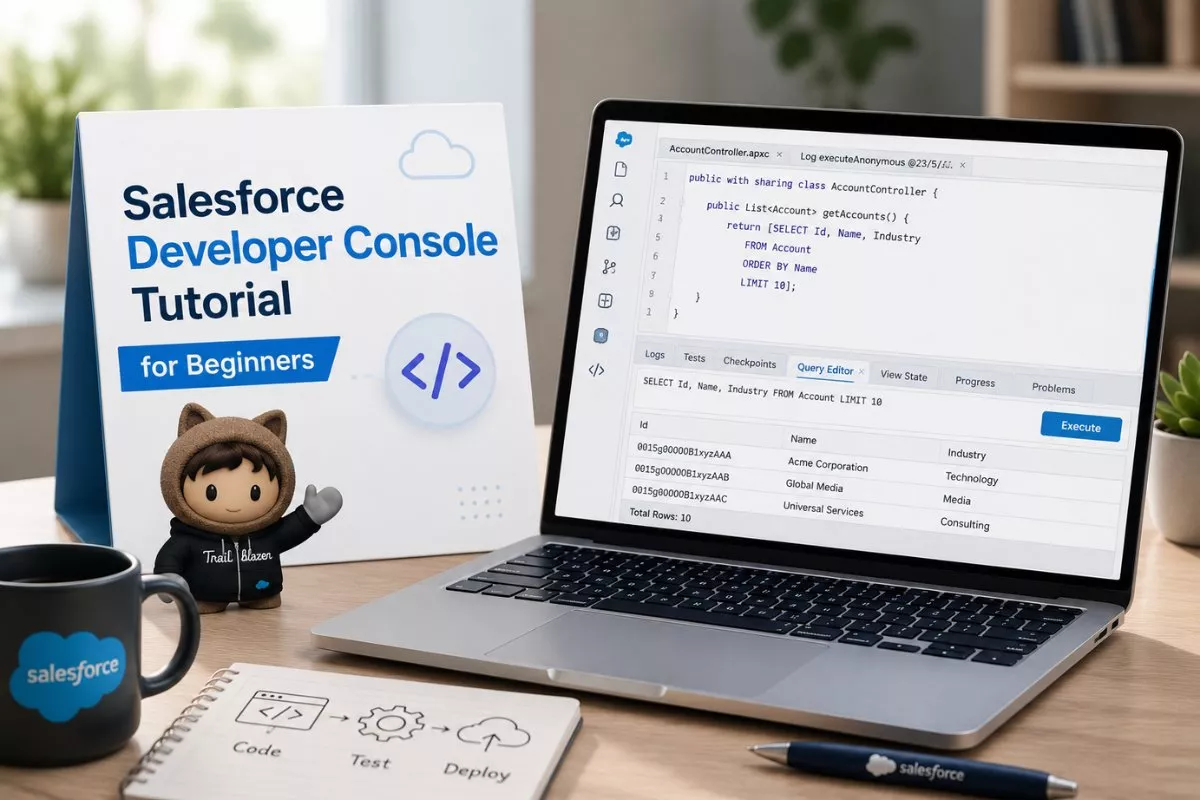
This Salesforce Developer Console Tutorial becomes especially useful during Apex debugging and quick Salesforce testing tasks.
Salesforce Developer Console is one of the first tools most Salesforce developers learn after entering the Salesforce ecosystem.
And honestly, even experienced developers still use it regularly for quick debugging and testing.
Because sometimes you do not want to open a full IDE just to:
- test Apex code
- run a SOQL query
- check debug logs
- troubleshoot a trigger
- validate automation
That is where Developer Console becomes extremely useful.
I still remember using Developer Console heavily during my early Salesforce learning phase because it made experimenting with Apex much easier. Instead of setting up complex tools immediately, I could quickly write code and see results directly inside Salesforce.
In this guide, we will understand:
- What Salesforce Developer Console is
- How to open it
- Main features explained
- Execute Anonymous usage
- SOQL Query Editor
- Debug logs
- Real project examples
- Developer Console vs Workbench
- Common beginner mistakes
- Best practices
By the end of this article, you will understand why Developer Console is still an important Salesforce development tool.
What is Salesforce Developer Console?
Salesforce Developer Console is a browser based development tool available directly inside Salesforce.
It allows developers and admins to:
- write Apex code
- execute anonymous Apex
- run SOQL and SOSL queries
- debug applications
- analyze logs
- test triggers and classes
without installing additional software.
You can think of it as a lightweight development environment built directly into Salesforce.
Why Developers Use Salesforce Developer Console
Developer Console is useful because it provides quick access to development and debugging tools.
Instead of opening external applications, developers can immediately:
- test logic
- troubleshoot issues
- validate records
- analyze logs
- run queries
This speeds up development significantly.
Especially during debugging sessions.
How to Open Salesforce Developer Console
Opening Developer Console is very simple.
In Salesforce Lightning
Step 1
Click the Gear icon in the top right corner.
Step 2
Select:
Developer Console
The console opens in a separate browser window.
In Salesforce Classic
If you still use Salesforce Classic:
Step 1
Click your username dropdown.
Step 2
Select:
Developer Console
Permissions Required for Developer Console
Sometimes beginners cannot see Developer Console.
Usually this happens because of missing permissions.
Common required permissions include:
- API Enabled
- Author Apex
- View All Data
- Customize Application
Without these permissions, some Developer Console features may not work properly.
As Salesforce organizations grow, controlling these permissions becomes extremely important. Our salesforce roles vs profiles guide explains how Salesforce manages user access and permissions across environments.
Main Features of Salesforce Developer Console
Now let’s understand the most important features practically.
Execute Anonymous Window
This is probably the most used feature.
It allows developers to quickly run Apex code without creating a permanent class.
Example:
System.debug('Hello Salesforce');You can instantly execute this code and view logs.
This feature becomes extremely useful during:
- testing
- debugging
- learning Apex
- validating automation
Real Example of Execute Anonymous
Suppose you want to update records quickly during testing.
You can run:
List<Account> accs = [SELECT Id, Name FROM Account LIMIT 5];

for(Account a : accs){
    a.Name = a.Name + ' Updated';
}

update accs;
This is much faster than manually editing records one by one.
Query Editor in Developer Console
Developer Console also provides a Query Editor.
This allows users to run:
- SOQL queries
- SOSL queries
directly against Salesforce data.
Example SOQL query:
SELECT Id, Name FROM Contact LIMIT 10This helps developers inspect records quickly.
Why Query Editor Matters
In real Salesforce projects, developers constantly need to:
- validate data
- inspect records
- troubleshoot issues
- verify automation
The Query Editor makes this much easier.
If you are still learning Salesforce data concepts, our guide on Salesforce leads vs opportunities explained explains how Salesforce records and sales objects work in real business scenarios.
Debug Logs in Developer Console
Debug Logs are one of the most important Salesforce debugging tools.
Whenever Apex code runs, Salesforce generates logs containing:
- executed statements
- errors
- variable values
- governor limits
- execution flow
Developers use these logs to identify problems.
Real Debugging Example
Suppose a trigger fails unexpectedly.
Without logs:
you may not know why.
With debug logs:
you can inspect:
- error lines
- failed queries
- validation failures
- automation sequence
This makes troubleshooting much easier.
Apex Classes and Triggers
Developer Console also allows users to:
- create Apex classes
- edit triggers
- save controllers
- write test classes
directly inside Salesforce.
Example trigger:
trigger AccountTrigger on Account(before insert){

    for(Account acc : Trigger.new){
        acc.Description = 'New Customer';
    }

}
If you are still learning automation basics, our Apex Trigger in Salesforce Guide explains how triggers work with practical Salesforce examples.
Running Test Classes
Salesforce requires Apex code coverage before deployment.
Developer Console allows developers to:
- execute tests
- check coverage
- analyze failures
- inspect execution results
This is heavily used during Salesforce deployments.
Log Inspector
Log Inspector helps developers analyze logs visually.
You can inspect:
- execution timeline
- heap usage
- SOQL execution
- DML operations
- call stacks
This becomes very important when troubleshooting performance problems.
Developer Console vs Workbench
This is a very common beginner confusion.
Both tools are useful, but for different purposes.
| Feature | Developer Console | Workbench |
|---|---|---|
| Apex Development | Yes | Limited |
| Execute Anonymous | Yes | Yes |
| Debug Logs | Yes | Limited |
| SOQL Queries | Yes | Yes |
| API Testing | Limited | Strong |
| Metadata Access | Limited | Strong |
| Data Export | Limited | Strong |
In simple words:
Developer Console is more development focused.
Workbench is more API and data management focused.
If you have not yet explored Workbench, our Salesforce Workbench Tutorial for Beginners explains how admins and developers use it for SOQL queries, APIs, exports, and metadata operations.
Developer Console vs VS Code
This is another important topic.
Developer Console
Best for:
- quick testing
- debugging
- simple Apex changes
- learning
VS Code
Best for:
- large projects
- source control
- advanced development
- deployments
- modern Salesforce development workflows
Today, most large Salesforce teams primarily use VS Code.
But Developer Console is still extremely useful for quick troubleshooting.
Is Developer Console Still Used in 2026?
Yes.
Even though VS Code has become the primary Salesforce IDE, many developers still use Developer Console for:
- quick Apex testing
- viewing logs
- Execute Anonymous
- rapid debugging
It remains a valuable tool.
Common Beginner Mistakes
After working on Salesforce projects, I repeatedly notice these mistakes.
Running Unsafe Apex in Production
Beginners sometimes execute update scripts directly in Production.
This is risky.
Always test inside Sandbox first.
Ignoring Debug Logs
Many new developers run code but never inspect logs properly.
Logs often reveal the exact issue immediately.
Writing Queries Without LIMIT
Example of bad practice:
SELECT Id, Name FROM AccountBetter:
SELECT Id, Name FROM Account LIMIT 20This avoids unnecessary large queries.
Confusing Developer Console with Workbench
Some beginners expect Developer Console to behave like Workbench.
But their purposes are different.
Understanding this distinction becomes important as you grow in Salesforce development.
What I Have Seen in Real Salesforce Projects
One thing I consistently notice is that Developer Console becomes most valuable during troubleshooting.
For example:
- checking failed triggers
- validating automation
- inspecting governor limits
- testing quick scripts
- analyzing debug logs
Sometimes problems that initially look extremely complicated can actually be diagnosed within minutes using logs and Execute Anonymous.
The developers who become productive fastest usually learn tools like:
- Developer Console
- Workbench
- VS Code
- Salesforce CLI
very early in their learning journey.
Best Practices for Using Developer Console
Here are some practical recommendations.
Use Sandbox for Testing
Never test risky scripts directly in Production.
Always validate inside Sandbox environments first.
Keep Debug Logs Clean
Large logs become difficult to analyze.
Clear old logs regularly.
Use Execute Anonymous Carefully
Even temporary scripts can update real data.
Always verify:
- queries
- conditions
- environments
before execution.
Learn SOQL Properly
SOQL is foundational for Salesforce development.
Almost every developer task eventually involves querying Salesforce records.
If you want to understand how Salesforce stores and manages business data, our Salesforce lead conversion process explained Process guide explains how Salesforce records move through real business workflows.
Understanding Developer Console Makes Salesforce Development Easier
Once beginners understand Developer Console properly, Salesforce development becomes much less intimidating.
Because now you understand:
- how Apex executes
- how logs work
- how SOQL queries work
- how debugging happens
- how developers troubleshoot issues
And honestly, this becomes one of the foundational tools every Salesforce developer should know.
FAQ
What is Salesforce Developer Console used for?
Salesforce Developer Console is used for writing Apex code, running SOQL queries, debugging applications, viewing logs, testing triggers, and troubleshooting Salesforce automation.
How do I open Developer Console in Salesforce Lightning?
In Salesforce Lightning, click the Gear icon in the top right corner and select Developer Console from the dropdown menu.
Is Salesforce Developer Console free?
Yes, Developer Console is included inside Salesforce and does not require additional installation or licensing.
What is the difference between Developer Console and Workbench?
Developer Console is mainly used for Apex development and debugging, while Workbench focuses more on API testing, metadata operations, and data management.
Can Salesforce admins use Developer Console?
Yes, admins with proper permissions can use Developer Console for queries, debugging, and troubleshooting Salesforce configurations.
After completing this Salesforce Developer Console Tutorial, beginners usually feel much more comfortable debugging Apex and testing Salesforce automation.


