





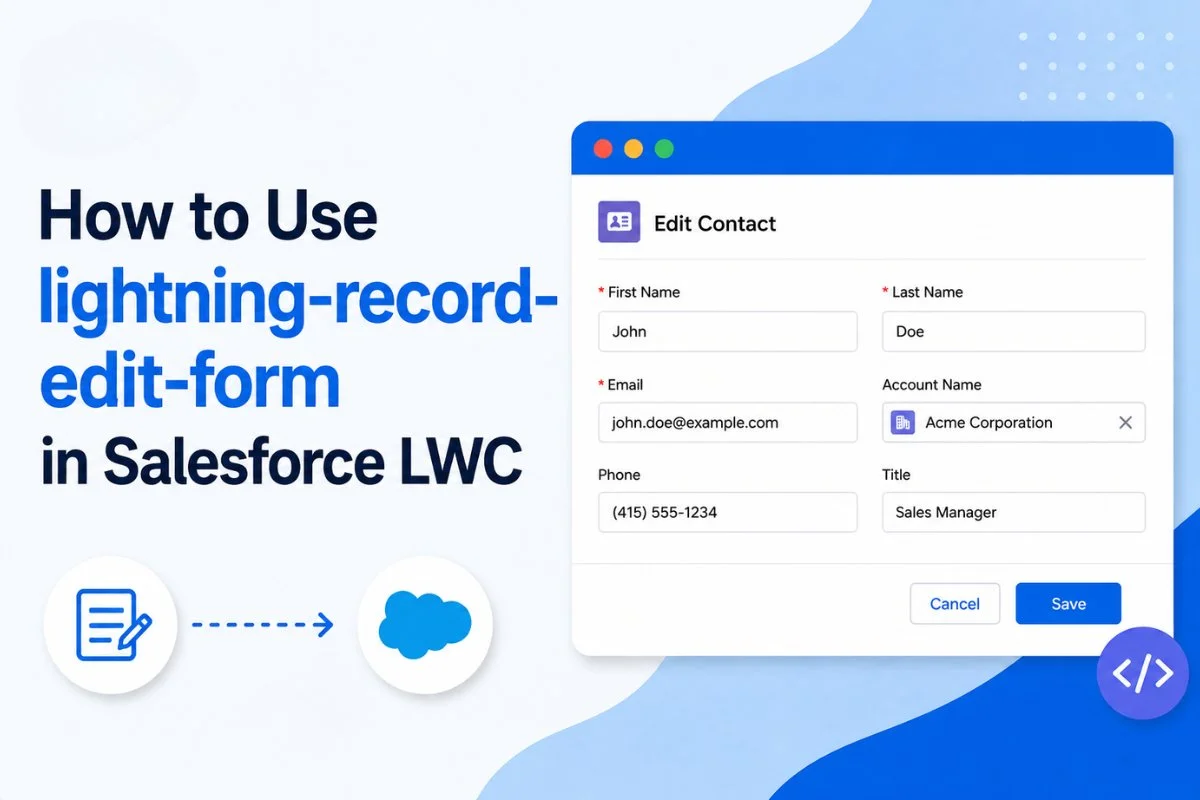
Creating custom record forms in Lightning Web Components often becomes challenging when you need more control over the user experience. A simple form might only require a few fields and a save button, but real-world projects usually need custom layouts, validation, success messages, and error handling. This is where lightning-record-edit-form becomes extremely useful.
Many Salesforce developers initially start with lightning-record-form because it is easy to configure. However, once customization requirements increase, most developers switch to lightning-record-edit-form because it provides greater flexibility while still leveraging Lightning Data Service.
Whether you’re building a custom Contact form, creating records from a Lightning page, or updating existing records without writing Apex, understanding how to use lightning-record-edit-form can save significant development time.
In this guide, you’ll learn how lightning-record-edit-form works, when to use it, and how to build custom create and edit forms using practical examples.

What Is lightning-record-edit-form in Salesforce LWC?
lightning-record-edit-form is a Lightning Base Component that allows developers to create and edit Salesforce records using Lightning Data Service.
Instead of writing Apex code to load, display, and save record data, Salesforce handles most of the heavy lifting automatically. The component retrieves field values, respects field-level security, enforces validation rules, and saves records directly to Salesforce.
According to Salesforce documentation, lightning-record-edit-form is recommended when you need a custom layout or more flexibility than lightning-record-form provides. It allows developers to control exactly how fields are displayed while still benefiting from built-in Salesforce functionality.
Common use cases include:
- Creating Contact records
- Editing Account records
- Building custom record forms
- Adding validation
- Handling success and error events
- Creating responsive page layouts
Because the component uses Lightning Data Service, developers don’t need Apex for many standard record operations.
Why Use lightning-record-edit-form Instead of lightning-record-form?
Both components help create and edit Salesforce records, but they serve different purposes.
| Feature | lightning-record-form | lightning-record-edit-form |
|---|---|---|
| Quick Setup | Yes | Yes |
| Custom Layout | Limited | Full Control |
| Custom Validation | Better Support | Better Support |
| Event Handling | Limited | Advanced |
| Field Placement Control | Limited | Full Control |
| Custom Buttons | Limited | Yes |
For simple record pages, lightning-record-form works perfectly.
However, if you need fields displayed in multiple columns, custom styling, custom save behavior, or advanced validation, lightning-record-edit-form is usually the better option.
I typically choose lightning-record-edit-form whenever business users want a form layout that differs from the standard Salesforce page layout.
How lightning-record-edit-form Works
Before building the component, it helps to understand how the process works behind the scenes.
User
 ↓
lightning-record-edit-form
 ↓
lightning-input-field
 ↓
Lightning Data Service
 ↓
Salesforce Database
The user enters data into form fields.
The lightning-record-edit-form component collects those values and passes them to Lightning Data Service.
Lightning Data Service validates the data, applies security settings, and saves the record in Salesforce.
This process removes much of the complexity normally associated with record management.
If you’ve already worked with record tables, you’ll notice a similar approach when displaying records in How to Display Data in a Lightning Datatable in LWC. Both components rely heavily on Salesforce’s built-in data services.
Creating Your First lightning-record-edit-form
Let’s start with a simple Contact creation form.
HTML File
<template>
    <lightning-card title="Create Contact">
        <lightning-record-edit-form
            object-api-name="Contact">

            <lightning-messages></lightning-messages>

            <lightning-input-field field-name="FirstName">
            </lightning-input-field>

            <lightning-input-field field-name="LastName">
            </lightning-input-field>

            <lightning-input-field field-name="Email">
            </lightning-input-field>

            <lightning-button
                type="submit"
                label="Save Contact"
                variant="brand">
            </lightning-button>

        </lightning-record-edit-form>
    </lightning-card>
</template>
This example creates a Contact form with three fields and a save button.
Notice the use of:
<lightning-messages>
This component automatically displays validation and server-side errors.
Many beginners forget to include it, making troubleshooting much harder later.
Understanding lightning-input-field
Inside a lightning-record-edit-form, fields are typically displayed using:
<lightning-input-field>
Salesforce automatically determines the correct input type based on the field definition.
For example:
- Email fields become email inputs
- Date fields become date pickers
- Picklists become dropdown menus
- Currency fields use currency formatting
This significantly reduces development effort because no custom field rendering logic is required.
Another major advantage is that field-level security is automatically respected. If a user cannot edit a field in Salesforce, the component honors those permissions without additional code.
Creating Records Without Apex
One reason lightning-record-edit-form is popular among Salesforce developers is that it eliminates the need for Apex in many scenarios.
Consider a simple Contact creation requirement.
Without Lightning Data Service, you would typically:
- Build the UI
- Capture field values
- Call Apex
- Perform DML
- Handle exceptions
- Return responses
With lightning-record-edit-form, Salesforce handles these operations automatically.
This reduces code complexity and improves maintainability.
In many projects, avoiding unnecessary Apex also helps reduce long-term maintenance effort.
Using Schema Imports
While hardcoded field names work, Salesforce recommends importing schema references whenever possible.
Example:
import CONTACT_OBJECT from '@salesforce/schema/Contact';
import FIRSTNAME_FIELD from '@salesforce/schema/Contact.FirstName';
import LASTNAME_FIELD from '@salesforce/schema/Contact.LastName';
Schema imports provide compile-time validation and help catch errors earlier in the development process.
This becomes especially valuable in larger projects where field names may change over time.

Editing Existing Records
Creating records is only one use case.
lightning-record-edit-form can also edit existing Salesforce records.
To do this, simply provide a record ID.
Example:
<lightning-record-edit-form
    record-id={recordId}
    object-api-name="Contact">
When a valid record ID is supplied, Salesforce automatically loads the existing record data into the form fields.
Users can then update the values and save their changes without additional Apex code.
This approach is commonly used on custom record pages and utility components.
Handling Success Events in lightning-record-edit-form
One of the biggest advantages of using lightning-record-edit-form is the ability to respond when a record is saved successfully.
Salesforce provides the onsuccess event, which fires automatically after the record is created or updated. This allows developers to display confirmation messages, refresh data, or redirect users to another page.
<lightning-record-edit-form
    object-api-name="Contact"
    onsuccess={handleSuccess}>
Inside the JavaScript file:
handleSuccess(event) {

    console.log('Record Saved');

}
In most projects, users expect visual confirmation after saving a record. A success message improves the user experience and removes confusion.
If you want a professional notification after saving, check out How to Call Apex Imperatively in Salesforce LWC where we covered different toast variants and real-world examples.
Displaying a Toast Message After Save
A common pattern is showing a toast notification after the record is created.
import { ShowToastEvent }
from 'lightning/platformShowToastEvent';

handleSuccess() {

    this.dispatchEvent(
        new ShowToastEvent({
            title: 'Success',
            message: 'Record saved successfully',
            variant: 'success'
        })
    );

}
When the save operation completes, Salesforce displays a confirmation message at the top of the page.
Users immediately know their changes were saved successfully.
Handling Errors in lightning-record-edit-form
Not every save operation succeeds.
Validation rules, missing required fields, field permissions, and duplicate rules can all prevent records from being saved.
This is where the onerror event becomes useful.
<lightning-record-edit-form
    object-api-name="Contact"
    onerror={handleError}>
handleError(event) {

    console.log(event.detail);

}
Whenever Salesforce encounters an issue, the event contains detailed error information.
Proper error handling makes troubleshooting much easier during development and testing.
Why lightning-messages Is Important
Many developers spend hours debugging forms simply because they forgot to add:
<lightning-messages>
</lightning-messages>
This component automatically displays validation errors returned by Salesforce.
For example:
- Required field missing
- Validation rule failure
- Duplicate record detected
- Invalid field value
Without lightning-messages, users often see nothing when a save fails.
Always include it inside your form.
Using the onsubmit Event
The onsubmit event executes before Salesforce saves the record.
This gives developers an opportunity to modify values or perform validation.
Example:
<lightning-record-edit-form
    object-api-name="Contact"
    onsubmit={handleSubmit}>
handleSubmit(event) {

    event.preventDefault();

    const fields = event.detail.fields;

    fields.FirstName = 'Salesforce';

    this.template
        .querySelector('lightning-record-edit-form')
        .submit(fields);

}
This technique is useful when business logic must run before records are saved.
Custom Validation Before Saving
Sometimes standard Salesforce validation rules are not enough.
For example, a company may require:
- Corporate email addresses only
- Specific phone number formats
- Additional client-side checks
You can validate inputs before submission.
validateFields() {

    let isValid = true;

    this.template
        .querySelectorAll('lightning-input-field')
        .forEach(field => {

            if(!field.reportValidity()) {

                isValid = false;

            }

        });

    return isValid;

}
If validation fails, Salesforce prevents the save operation.
Custom validation helps create a better user experience because users receive immediate feedback.
Resetting Form Fields
Users occasionally enter incorrect information and want to clear the form.
Instead of refreshing the page, Salesforce allows developers to reset all fields.
handleReset() {

    const inputFields =
        this.template.querySelectorAll(
            'lightning-input-field'
        );

    if(inputFields) {

        inputFields.forEach(field => {

            field.reset();

        });

    }

}
This restores fields to their original values.
Reset functionality is especially useful in record editing scenarios.

Common Mistakes Developers Make
After reviewing dozens of Salesforce projects, I’ve noticed the same mistakes appear repeatedly.
Forgetting object-api-name
Without the object API name, Salesforce doesn’t know which object the form should manage.
Missing lightning-messages
Errors become invisible to users.
Incorrect Field API Names
Using labels instead of API names causes fields not to render correctly.
Missing record-id
Developers sometimes attempt to edit existing records without supplying a record ID.
Not Handling Errors
Ignoring the onerror event makes debugging much harder.
Small configuration mistakes often create bigger issues than the actual component itself.
lightning-record-form vs lightning-record-edit-form
Many beginners ask which component should be used.
| Feature | lightning-record-form | lightning-record-edit-form |
|---|---|---|
| Fast Setup | Yes | Yes |
| Custom Layout | Limited | Full Control |
| Custom Validation | Limited | Better |
| Event Handling | Basic | Advanced |
| Field Placement | Limited | Flexible |
| Enterprise Use Cases | Moderate | Excellent |
For quick forms, lightning-record-form works well.
For real-world applications requiring customization, lightning-record-edit-form is usually the better choice.
Best Practices
Keep forms simple and only display fields users actually need.
Use schema imports whenever possible because they provide compile-time validation and reduce maintenance issues.
Always handle both success and error events. Users should receive feedback regardless of the outcome.
Additionally, avoid unnecessary Apex code. Since Lightning Data Service already manages record operations, Apex should only be introduced when business requirements demand it.
If your form updates records displayed elsewhere on the page, consider refreshing related components such as datatables. This creates a smoother user experience and keeps data synchronized.
Real Project Experience
I first used lightning-record-edit-form while building a custom Contact management screen for a sales team. The standard page layout contained too many fields, and users only needed five specific fields during data entry.
Initially, we considered building a custom Apex solution. However, using lightning-record-edit-form reduced development time significantly because Salesforce handled validation, security, and record saving automatically. The component required less code, was easier to maintain, and delivered a much better user experience.
Frequently Asked Questions
What is lightning-record-edit-form in Salesforce LWC?
It is a Lightning Base Component used to create and edit Salesforce records using Lightning Data Service.
Do I need Apex with lightning-record-edit-form?
No. Most create and update operations can be performed without Apex.
What is the difference between lightning-record-form and lightning-record-edit-form?
lightning-record-edit-form provides more customization and event handling options.
Can I edit existing records?
Yes. Simply provide a valid record-id.
What is the purpose of lightning-messages?
It automatically displays validation and server-side errors.
How do I show a success message?
Use the onsuccess event and display a toast notification.
Can I perform validation before saving?
Yes. Use the onsubmit event and custom validation logic.
Does lightning-record-edit-form respect field-level security?
Yes. Salesforce automatically enforces security settings.
Can I reset all form fields?
Yes. Use the reset() method on input fields.
Should I use Apex or Lightning Data Service?
Use Lightning Data Service whenever possible and only use Apex when business requirements require additional processing.
Conclusion
Understanding How to Use lightning-record-edit-form in Salesforce LWC is essential for building modern Salesforce user interfaces. The component provides a powerful way to create and edit records while leveraging Lightning Data Service, built-in validation, field-level security, and Salesforce best practices.
Whether you’re creating new records, updating existing data, handling success events, or implementing custom validation, lightning-record-edit-form can significantly reduce development effort while improving maintainability. For most record management scenarios, it remains one of the most valuable Lightning Base Components available to Salesforce developers.


