





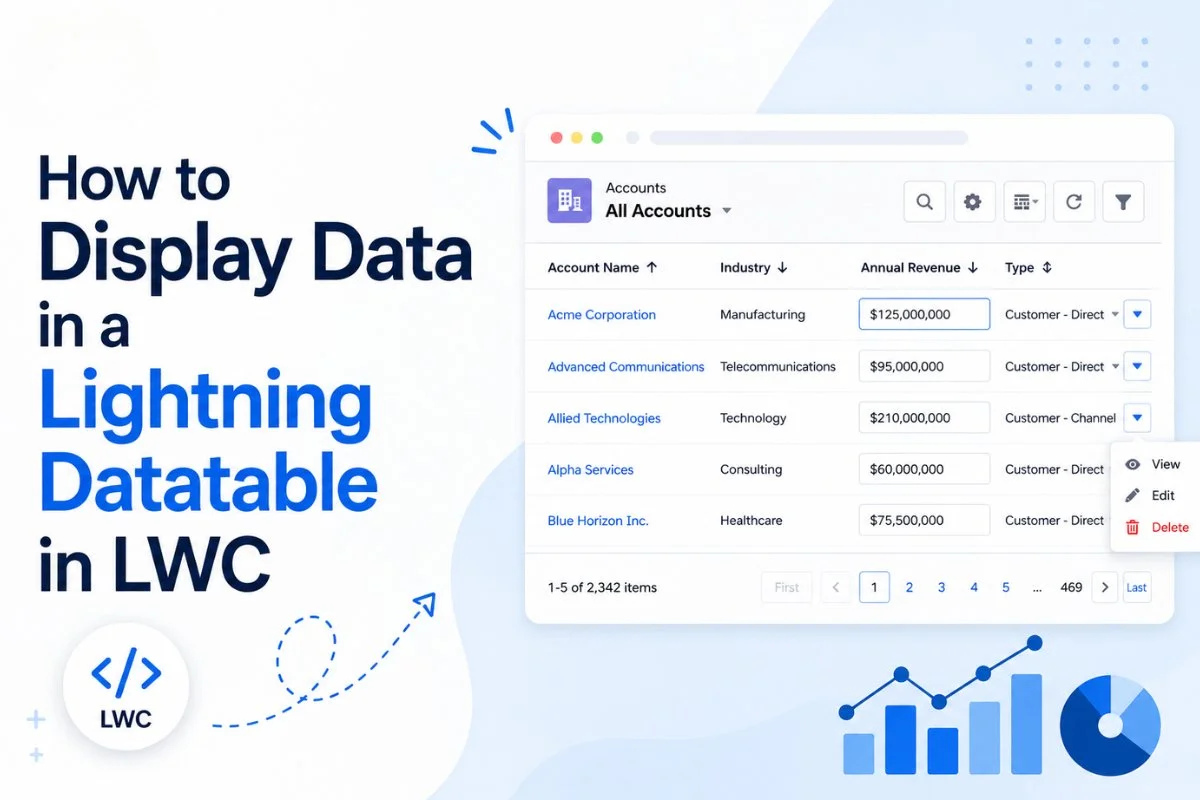
Account records, Contact records, Opportunities, Cases, and custom object data are often difficult to read when displayed as plain text inside a Lightning Web Component. Users usually expect data to appear in a structured format where records can be viewed, sorted, and managed efficiently. This is exactly where understanding How to Display Data in a Lightning Datatable in LWC becomes important.
The lightning-datatable component is one of the most widely used Lightning Base Components in Salesforce. It allows developers to display Salesforce records in a clean table format while supporting features such as sorting, row selection, inline editing, and row actions. Instead of building a custom HTML table from scratch, developers can use a standard Salesforce component that already follows the Lightning Design System and provides a consistent user experience.
In real Salesforce projects, datatables appear almost everywhere. Sales teams use them to view Opportunities, support agents use them to manage Cases, and administrators often display custom object records in Lightning applications. Because of this, learning how to work with Lightning Datatables is a fundamental skill for every Salesforce developer.
In this article, you’ll learn how to display data in a Lightning Datatable in LWC using Apex, how the component works, and the best practices experienced developers follow in production environments.

What Is a Lightning Datatable in LWC and How Does It Work?
A Lightning Datatable is a Salesforce base component used to display records in a tabular format. Instead of manually creating rows and columns using HTML, developers can use the lightning-datatable component to render data quickly and professionally.
A typical datatable contains:
- Rows representing records
- Columns representing fields
- Sorting functionality
- Row selection
- Inline editing
- Custom actions
Salesforce provides this component because displaying large amounts of data is a common requirement in enterprise applications. Rather than building custom tables, developers can focus on business logic while Salesforce handles the presentation layer.
According to Salesforce documentation, the lightning-datatable component is the standard approach for displaying Salesforce record data in a structured table format and also supports advanced capabilities such as inline editing.
Why Use Lightning Datatable Instead of an HTML Table?
Many beginners initially create standard HTML tables because they are familiar with HTML and CSS. Although this approach works, it quickly becomes difficult to maintain when requirements grow.
For example, imagine a requirement where users need:
- Column sorting
- Row actions
- Record selection
- Inline editing
- Mobile responsiveness
Implementing all these features manually requires significant development effort.
A Lightning Datatable already includes many of these capabilities. As a result, development time decreases while the user experience improves significantly.
Developers who already understand Lightning Web Components (LWC) Full Tutorial for Beginners in Salesforce will notice that Salesforce encourages the use of base components whenever possible because they provide consistency across applications.
Key Features of Lightning Datatable in LWC
The popularity of Lightning Datatable comes from its built-in functionality.
| Feature | Description |
|---|---|
| Sorting | Sort records by column |
| Inline Editing | Edit records directly in the table |
| Row Actions | Perform actions on individual rows |
| Row Selection | Select one or multiple records |
| Data Formatting | Currency, date, phone, email support |
| Responsive UI | Consistent Salesforce experience |
Because these features are available out of the box, developers can create powerful user interfaces with relatively little code.
How Lightning Datatable Works
The overall architecture is straightforward.
Salesforce Records
        ↓
Apex Controller
        ↓
@wire Service
        ↓
JavaScript Data Processing
        ↓
lightning-datatable
        ↓
User Interface
The Apex controller retrieves records from Salesforce. The wire service then provides the data to the Lightning Web Component. Finally, the datatable component displays the records to users.
This architecture is commonly used throughout Salesforce development and is very similar to patterns you’ll see while working with the Salesforce @wire Decorator in LWC with Real Examples
Creating the Apex Controller
The first step is creating an Apex controller that retrieves Account records.
public with sharing class AccountController {

    @AuraEnabled(cacheable=true)

    public static List<Account> getAccounts() {

        return [

            SELECT Id,
                   Name,
                   Industry,
                   AnnualRevenue

            FROM Account

            LIMIT 50

        ];

    }

}
The @AuraEnabled(cacheable=true) annotation allows the method to be called from Lightning Web Components while improving performance through client-side caching.
This approach is widely used because it reduces unnecessary server requests and provides a better user experience.
Creating the Lightning Web Component HTML File
After creating the Apex controller, the next step is building the component interface.
<template>

    <lightning-card title="Account Records">

        <lightning-datatable

            key-field="Id"
            data={accounts}
            columns={columns}

        >

        </lightning-datatable>

    </lightning-card>

</template>
The lightning-datatable component is responsible for rendering the records.
The key-field attribute uniquely identifies each row, while the data and columns attributes define what information appears in the table.

Creating the JavaScript File
Next, connect the component to the Apex controller.
import { LightningElement, wire } from 'lwc';

import getAccounts from '@salesforce/apex/AccountController.getAccounts';

const COLUMNS = [

    { label: 'Name', fieldName: 'Name' },

    { label: 'Industry', fieldName: 'Industry' },

    {
        label: 'Annual Revenue',
        fieldName: 'AnnualRevenue',
        type: 'currency'
    }

];

export default class AccountDataTable extends LightningElement {

    columns = COLUMNS;

    accounts = [];

    @wire(getAccounts)

    wiredAccounts({ error, data }) {

        if (data) {

            this.accounts = data;

        }

        else if (error) {

            console.error(error);

        }

    }

}
The wire service automatically retrieves records and updates the component whenever data changes. Because of this reactive behavior, developers often use the wire service when displaying read-only data.
Real Developer Experience
I first used Lightning Datatable while building a custom Opportunity dashboard for a sales team. Initially, records were displayed inside custom HTML cards, which looked good when only a few records existed. However, once the number of Opportunities increased, the page became difficult to use. Switching to a Lightning Datatable immediately improved readability and allowed users to sort records without additional development effort.
Testing the Component
After deploying the component, add it to a Lightning App Page or Record Page.
If everything is configured correctly:
- Apex retrieves Account records.
- Wire service receives the data.
- Lightning Datatable renders the records.
- Users can view information in a structured table format.
This simple implementation forms the foundation for more advanced features such as sorting, row actions, and inline editing, which we’ll cover in the next section.
How to Add Sorting to a Lightning Datatable in LWC
Displaying records is only the first step. In real Salesforce projects, users rarely want to view data in a fixed order. Sales representatives may want to sort Opportunities by Amount, support teams may sort Cases by Priority, and managers often sort records by Created Date.
Fortunately, Lightning Datatable provides built-in sorting support.
First, make the columns sortable.
const COLUMNS = [

    {
        label: 'Name',
        fieldName: 'Name',
        sortable: true
    },

    {
        label: 'Industry',
        fieldName: 'Industry',
        sortable: true
    },

    {
        label: 'Annual Revenue',
        fieldName: 'AnnualRevenue',
        type: 'currency',
        sortable: true
    }

];
Next, handle the sorting event.
handleSort(event) {

    const { fieldName, sortDirection } = event.detail;

    this.sortData(fieldName, sortDirection);

}
Once implemented, users can simply click a column header to sort records in ascending or descending order. This small enhancement makes a datatable significantly more useful when dealing with large datasets.

Adding Row Actions to a Lightning Datatable in LWC
Row actions allow users to perform actions directly from the table without opening the record first.
Common row actions include:
- View Record
- Edit Record
- Delete Record
- Clone Record
For example, a sales manager reviewing Opportunities may want to open a specific record directly from the table.
{
    type: 'action',
    typeAttributes: {
        rowActions: [
            { label: 'View', name: 'view' },
            { label: 'Delete', name: 'delete' }
        ]
    }
}
After defining the actions, create a handler.
handleRowAction(event) {

    const actionName = event.detail.action.name;
    const row = event.detail.row;

    if(actionName === 'view') {

        console.log(row.Id);

    }

}
Row actions improve usability because users can perform common operations without navigating away from the page.
How to Use Inline Editing in a Lightning Datatable in LWC
One of the most powerful features of Lightning Datatable is inline editing.
Instead of opening a record page, users can update field values directly inside the table.
Salesforce officially supports inline editing through the editable:true attribute on columns.
Example:
{
    label: 'Industry',
    fieldName: 'Industry',
    editable: true
}
When users modify a value, Salesforce automatically displays Save and Cancel buttons.
This feature is particularly useful for:
- Lead management
- Contact updates
- Opportunity maintenance
- Data cleanup projects
In many organizations, inline editing saves a significant amount of time because users no longer need to open individual records.

Refreshing Lightning Datatable Data in LWC Using RefreshApex
One common challenge developers face is keeping datatable data up to date after record changes.
Imagine a user updates a record through inline editing. The update succeeds, but the table still shows old values. This creates confusion and makes users think the save operation failed.
The solution is refreshApex.
If you’ve already worked with RefreshApex in LWC: Keep Salesforce Data Updated in Real Time you’ll recognize this pattern immediately.
import { refreshApex } from '@salesforce/apex';
After saving records:
await refreshApex(this.wiredAccounts);
Refreshing the wire result ensures the latest data is displayed without requiring a full page refresh.
Real Project Scenario
I once worked on a custom dashboard where account managers monitored hundreds of customer records daily. Initially, records were displayed using separate cards and custom layouts. While the interface looked attractive, users struggled to scan large amounts of information quickly.
After replacing the custom layout with a Lightning Datatable, productivity improved immediately. Users could sort records, filter information, and update values directly from the table. The change required less code than the original solution while providing a much better experience.
Common Errors in Lightning Datatable
While implementing Lightning Datatables, developers frequently encounter a few common issues.
| Error | Cause | Solution |
|---|---|---|
| No records displayed | Apex not returning data | Verify SOQL query |
| Blank columns | Incorrect field name | Check field API names |
| Sorting not working | sortable missing | Add sortable:true |
| Inline editing disabled | editable missing | Add editable:true |
| Data not refreshing | refreshApex not called | Refresh wire result |
Most datatable issues are configuration related rather than component-related.
Lightning Datatable vs HTML Table
Developers sometimes wonder whether they should use a standard HTML table or Lightning Datatable.
| Feature | Lightning Datatable | HTML Table |
|---|---|---|
| Sorting | Built-in | Manual |
| Inline Editing | Built-in | Manual |
| Salesforce Styling | Built-in | Manual |
| Row Selection | Built-in | Manual |
| Development Time | Low | High |
| Maintenance | Easy | Difficult |
For Salesforce applications, Lightning Datatable is almost always the better choice.
Best Practices
Keep the number of displayed records reasonable. Loading thousands of records into a datatable can impact performance and make the interface difficult to use.
Only display fields users actually need. Excessive columns create horizontal scrolling and reduce readability.
Use sorting on important business fields such as Name, Amount, Stage, or Created Date. This helps users find information more quickly.
Whenever records can be updated, combine inline editing with RefreshApex to ensure users always see the latest data.
Additionally, use appropriate field types such as currency, phone, email, and date. Proper formatting improves readability and creates a more professional user experience.
Frequently Asked Questions
What is Lightning Datatable in Salesforce LWC?
Lightning Datatable is a Salesforce base component used to display records in a structured table format.
Can Lightning Datatable display records from Apex?
Yes. Apex controllers are commonly used to retrieve records and populate datatables.
Does Lightning Datatable support sorting?
Yes. Column sorting is supported through the sortable attribute.
Can users edit records directly in a datatable?
Yes. Inline editing can be enabled using editable:true.
What is the key-field attribute used for?
The key-field uniquely identifies each row within the table.
Can Lightning Datatable display custom objects?
Yes. Standard and custom object records can both be displayed.
Is Lightning Datatable mobile friendly?
Yes. It follows Salesforce Lightning Design System standards.
How do I refresh records after an update?
Use refreshApex to retrieve the latest data.
Can I add custom buttons to rows?
Yes. Row actions allow custom operations such as View, Edit, and Delete.
Should I use Lightning Datatable or an HTML table?
For Salesforce applications, Lightning Datatable is generally the preferred option because it provides many built-in features.
Conclusion
Understanding is an essential skill for Salesforce developers. Datatables provide a professional way to display Salesforce records while supporting advanced features such as sorting, row actions, inline editing, and data formatting.
Whether you’re building a simple record viewer or a complex business dashboard, Lightning Datatable can significantly reduce development effort while improving the user experience. By combining Apex, the Wire Service, and RefreshApex, developers can create powerful and responsive Salesforce applications that handle large amounts of data efficiently.
Read More :
- Lightning Web Components (LWC) Full Tutorial for Beginners in Salesforce
- Salesforce @wire Decorator in LWC with Real Examples
- Imperative Apex Call in LWC with Real Project Examples
- RefreshApex in LWC: Keep Salesforce Data Updated in Real Time
- Salesforce Developer Console Tutorial for Beginners
- VS Code Setup for Salesforce Development


