


As Salesforce organizations grow, record pages often become overloaded with fields that many users never use. Sales teams, support agents, managers, and finance users may all work on the same object, but each role requires different information. Showing every field to every user creates clutter, slows down data entry, and makes record pages difficult to navigate.
Salesforce Dynamic Forms solve this problem by allowing admins to display fields and sections only when they are needed. Instead of maintaining multiple page layouts or relying on custom development, you can build a single Lightning Record Page that changes automatically based on record values, user profiles, permissions, or other conditions.
The result is a cleaner interface, faster data entry, and a much better experience for everyone using Salesforce.
In this guide, you’ll learn what Dynamic Forms are, how they work, how to configure conditional field visibility, and when they should be used in real business scenarios
What Are Salesforce Dynamic Forms?
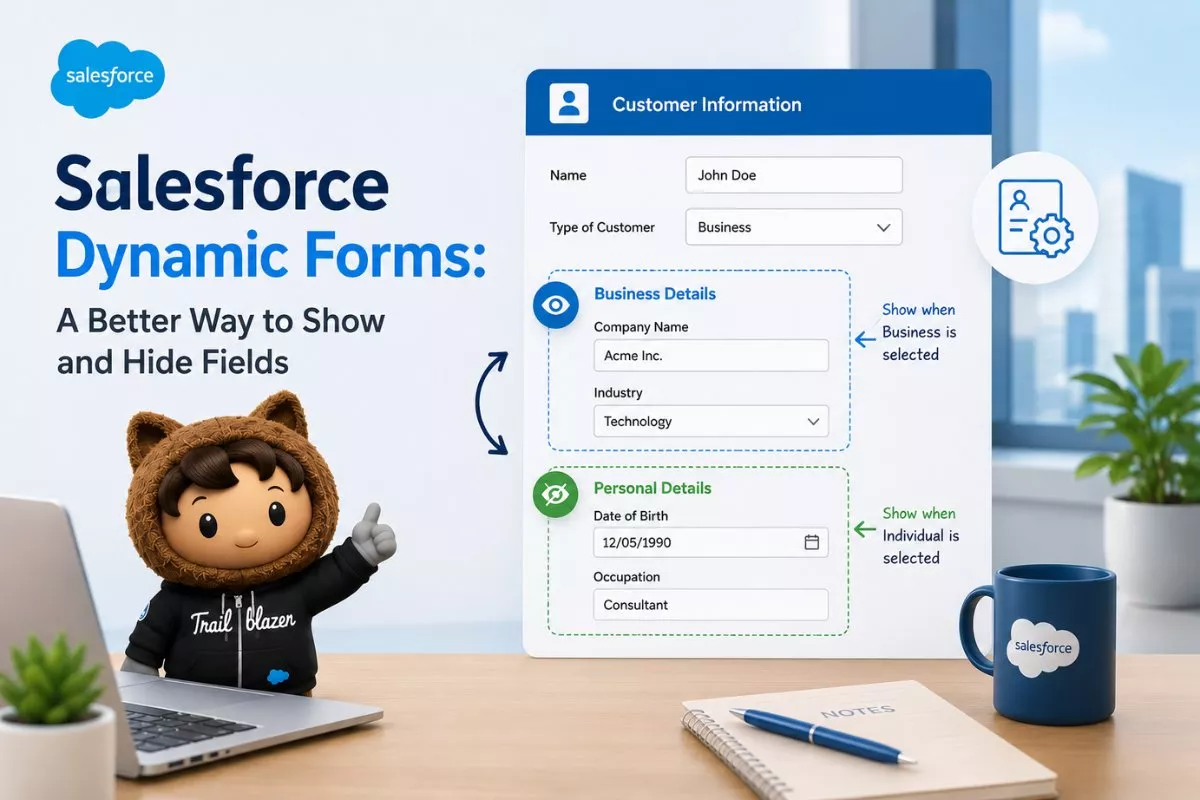
Dynamic Forms are a Lightning Experience feature that allows you to place individual fields and field sections directly on a Lightning Record Page. Unlike the traditional Record Detail component, every field or section can have its own visibility rules.
This means Salesforce decides which information should appear based on the current record or the user viewing it.
For example, an Opportunity may only display contract information after the deal reaches the Closed Won stage. Likewise, a Case record can automatically show escalation fields only when the priority changes to High.
Instead of forcing every user to scroll through dozens of unnecessary fields, Dynamic Forms keep the page focused on the information that actually matters.
Why Were Dynamic Forms Introduced?
Before Dynamic Forms, Salesforce administrators mainly depended on Page Layouts and Record Types to customize record pages.
Although this approach worked, it also created several maintenance challenges.
A single object often required multiple page layouts for different departments. Every time a new field was added, admins had to update several layouts individually. As organizations grew, managing these layouts became increasingly time-consuming.
Dynamic Forms simplify this process by moving field management into Lightning App Builder. Rather than creating multiple layouts, you can build one flexible page that automatically adapts to different situations.
This approach reduces administration work while improving the overall user experience.

How Dynamic Forms Improve the User Experience
One of the biggest advantages of Dynamic Forms is simplicity.
Imagine a sales representative creating a new Opportunity.
At the beginning of the sales process, they only need to enter:
- Opportunity Name
- Account
- Stage
- Close Date
- Amount
If Salesforce displayed every possible field immediately, the page would feel overwhelming.
Instead, Dynamic Forms gradually reveal additional information as the Opportunity progresses through each stage.
Users spend less time searching for fields, make fewer mistakes, and complete records more quickly.
Organizations that use Salesforce for multiple business processes often notice improved data quality because users only see fields that are relevant to their current task.
If your record pages also rely on Flow automation, understanding How to Debug and Fix Salesforce Flow Errors ? helps ensure that visibility rules and automation work together without unexpected issues.
Dynamic Forms vs Traditional Page Layouts
Although both features control what users see on record pages, they work in very different ways.
Traditional Page Layouts organize every field inside a single Record Detail component. If you want different users to see different fields, you usually need separate page layouts or Record Types.
Dynamic Forms remove that limitation.
Every field becomes an independent component that can have its own visibility rules.
Instead of controlling an entire page layout, you control each individual field.
Some key differences include:
- Individual field visibility instead of page-level visibility.
- Better Lightning Experience support.
- Fewer page layouts to maintain.
- Easier customization through Lightning App Builder.
- More flexible conditions without custom development.
For most Lightning implementations, Dynamic Forms provide a cleaner and more scalable solution than relying entirely on traditional page layouts.
Enabling Dynamic Forms
Setting up Dynamic Forms is straightforward and doesn’t require Apex or custom code.
Open the Lightning Record Page for the object you want to customize.
Select the existing Record Detail component.
If the object supports Dynamic Forms, Salesforce displays an Upgrade Now option.
During the upgrade, Salesforce automatically converts your existing page layout into Field Sections while preserving the fields that already exist on the page.
After the migration, you’ll notice that every section becomes independently editable.
This gives you complete control over where fields appear and when users can see them.
Image Prompt

Understanding Field Sections
Field Sections are one of the most useful parts of Dynamic Forms.
Instead of placing every field inside one long Details section, you can organize information into logical groups.
For example, an Opportunity page might contain sections such as:
Customer Information
- Account
- Contact
- Phone
Opportunity Details
- Stage
- Amount
- Close Date
- Forecast Category
Contract Information
- Contract Number
- Renewal Date
- Service Level
- Implementation Owner
This organization makes record pages much easier to read.
Users immediately understand where information belongs, reducing scrolling and improving productivity.
Conditional Field Visibility
Conditional visibility is the feature that makes Dynamic Forms truly powerful.
Every field or Field Section can appear only when specific conditions are satisfied.
Suppose your organization has a checkbox called Requires Executive Approval.
When the checkbox is unchecked, approval-related fields remain hidden.
The moment the checkbox becomes true, Salesforce automatically displays:
- Approval Status
- Executive Approver
- Approval Date
- Comments
No additional page layouts are required.
No custom code is needed.
The page simply adapts to the record automatically.
Image Prompt

Showing Fields Based on Picklist Values
A common business requirement is displaying fields according to a picklist selection.
Consider a Case object.
When Priority is set to Low, only basic support information appears.
If the Priority changes to Critical, Salesforce can immediately display additional fields such as:
- Escalation Manager
- Root Cause
- SLA Deadline
- Executive Contact
This keeps the page clean during normal work while still providing all necessary information when exceptional situations occur.
Dynamic Forms allow these conditions to be configured without writing code, making them accessible to both Salesforce Administrators and Developers.
ontinue from Previous Section
Creating Visibility Rules
Once your fields have been added to the Lightning Record Page, the next step is configuring when they should appear.
Every field and Field Section includes a Set Visibility option inside Lightning App Builder. This allows you to create conditions without writing Apex or creating custom components.
A visibility rule can be based on several criteria, including:
- Record field values
- User Profile
- Permission Sets
- Custom Permissions
- Record Type
- Device type
- Formula evaluation
You can also combine multiple conditions using AND or OR logic, making Dynamic Forms flexible enough for most business requirements.
For example, suppose your organization only wants Sales Managers to see discount approval information.
The visibility rule could be:
- User Profile = Sales Manager
- Discount Percentage > 20%
Only users who satisfy both conditions will see that section.
Image Prompt

Using Dynamic Forms with Record Types
Many organizations use Record Types to support different business processes.
For example, an Account object might include:
- Customer
- Partner
- Vendor
Each Record Type requires different information.
Without Dynamic Forms, administrators often create separate page layouts for every Record Type.
With Dynamic Forms, one Lightning Record Page can support multiple Record Types by displaying only the relevant sections.
For instance:
A Customer Account may display:
- Billing Information
- Customer Success Details
- Contract Information
A Vendor Account may instead display:
- Tax Information
- Payment Terms
- Supplier Details
The page automatically adjusts based on the selected Record Type, reducing the number of layouts that need maintenance.
Profile-Based Field Visibility
Another powerful capability is controlling visibility based on user profiles.
Imagine a support organization where agents and managers work on the same Case records.
Support Agents may only need:
- Case Details
- Customer Information
- Resolution Notes
Managers may additionally require:
- Escalation Information
- SLA Metrics
- Internal Review Fields
Instead of maintaining multiple Lightning Pages, Dynamic Forms display the appropriate information automatically.
This creates a cleaner interface while reducing administrative effort.
Real Business Example
Let’s consider an Opportunity management process.
During the early sales stages, representatives only need to complete standard sales information.
When the Opportunity reaches Proposal, additional pricing fields appear.
Once the Opportunity moves to Closed Won, Salesforce automatically displays:
- Contract Start Date
- Contract End Date
- Customer Success Manager
- Implementation Owner
- Go-Live Date
The sales representative never sees unnecessary fields before they become relevant.
This approach improves data quality because users complete information at the appropriate stage instead of ignoring required fields at the beginning of the sales cycle.
If these field changes also trigger automation, understanding Salesforce Flow Loops: Collections, Iteration, and Best Practices helps ensure your Flows continue performing efficiently when records are updated in bulk.
Image Prompt

Dynamic Forms Limitations
Although Dynamic Forms are extremely useful, they are not a complete replacement for every page customization feature.
Some limitations include:
- Certain standard objects may have feature restrictions depending on the Salesforce release.
- Mobile support differs from desktop behavior for some configurations.
- Visibility rules only affect what users see—they do not replace object security or Field-Level Security.
- Dynamic Forms are available only in Lightning Experience.
Before replacing every page layout, it’s always a good idea to test your configuration in a Sandbox. Salesforce Sandbox Types Explained: Developer, Developer Pro, Partial Copy, and Full explains which Sandbox is best for safely testing Lightning page changes before deployment.
Best Practices for Dynamic Forms
To keep Lightning pages easy to maintain, follow these recommendations:
- Create meaningful Field Sections instead of placing fields randomly.
- Avoid creating dozens of visibility conditions for a single page.
- Keep related fields together.
- Use descriptive section names.
- Test every visibility rule using different Profiles and Record Types.
- Review page performance after major changes.
- Document complex visibility logic for future administrators.
Simple visibility rules are much easier to troubleshoot than pages containing dozens of overlapping conditions.
Common Mistakes to Avoid
Many administrators make the same mistakes when first using Dynamic Forms.
Using Dynamic Forms Instead of Security
Visibility rules only hide fields from the page.
They do not replace Field-Level Security or Profile permissions.
Sensitive information should always be protected using Salesforce security features.
Creating Too Many Conditions
Complex visibility logic becomes difficult to maintain over time.
Whenever possible, keep conditions simple and easy to understand.
Forgetting to Test Different Users
Always verify the page using:
- Standard users
- Managers
- System Administrators
- Different Record Types
This helps identify unexpected visibility issues before deployment.
Leaving Empty Sections
If every field inside a section is hidden, consider applying visibility to the entire section instead of individual fields.
This creates a much cleaner page.
Frequently Asked Questions
What are Salesforce Dynamic Forms?
Dynamic Forms allow administrators to place individual fields and sections directly on Lightning Record Pages while controlling their visibility using conditions.
Do Dynamic Forms replace Page Layouts?
Not completely. They reduce the need for multiple page layouts but still work alongside standard Salesforce page configuration.
Can I show fields based on another field?
Yes. Visibility Rules can display or hide fields according to picklist values, checkboxes, formulas, and other field values.
Do Dynamic Forms require Apex?
No. Everything can be configured using Lightning App Builder without writing code.
Are Dynamic Forms available in Salesforce Classic?
No. Dynamic Forms are a Lightning Experience feature.
Final Thoughts
Dynamic Forms have transformed the way Salesforce administrators build Lightning Record Pages. Instead of overwhelming users with every available field, they allow pages to adapt intelligently based on business conditions, user roles, and record information.
When implemented correctly, Dynamic Forms reduce page complexity, improve data quality, simplify administration, and provide a much better user experience. Combined with well-designed automation and clean page organization, they help create Salesforce applications that are easier for users to understand and maintain.
Related Articles
- Salesforce Flow Loops: Collections, Iteration, and Best Practices
- How to Debug and Fix Salesforce Flow Errors ?
- Salesforce Sandbox Types Explained: Developer, Developer Pro, Partial Copy, and Full
- Salesforce Field History Tracking vs Setup Audit Trail comparison in Salesforce Lightning
- WhoId vs WhatId in Salesforce
- How to Debug and Fix Salesforce Flow Errors ?