





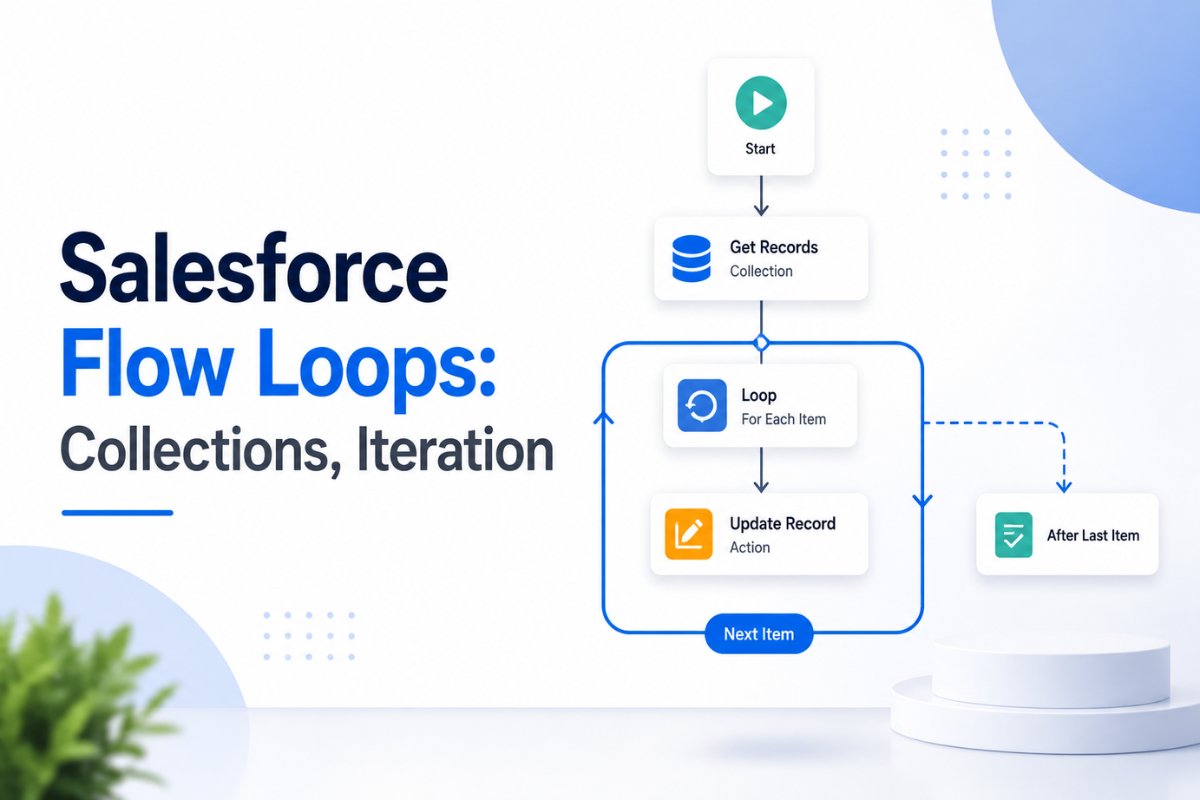
Salesforce Flow has become the preferred automation tool for many admins because it can handle complex business processes without writing Apex code. As your flows become more advanced, you’ll often need to process multiple records instead of just one. That’s where Salesforce Flow Loops become essential.
A Loop allows a Flow to process each record in a collection individually. Whether you’re updating hundreds of Contacts, creating Tasks for multiple Opportunities, or validating records one by one, loops make automation scalable and easier to manage.
However, loops are also one of the most common reasons for slow flows and governor limit errors. Many beginners place Update Records or Create Records elements inside a loop, which quickly causes performance issues.
In this guide, you’ll learn how Salesforce Flow Loops work, how collection variables are used, practical examples, common mistakes, and the best practices every Salesforce Admin should follow.
What Is a Salesforce Flow Loop?
A Loop is a Logic element in Flow Builder that processes every record inside a collection one at a time.
Instead of updating records manually, Salesforce automatically picks one record from the collection, processes it, then moves to the next record until every record has been handled.
Think of it like reading every page in a book.
Instead of opening every page individually, you simply keep turning pages until you reach the end.
Flows work in exactly the same way.
When Should You Use a Loop?
Loops are useful whenever your Flow needs to work with multiple records.
Common examples include:
- Updating all Contacts related to an Account
- Creating Tasks for multiple Opportunities
- Sending notifications to every Case Owner
- Checking each Product before creating Opportunity Line Items
- Updating custom object records in bulk
- Filtering records based on conditions
If your Flow only processes one record, you usually don’t need a Loop.

Understanding Collection Variables
Before using a Loop, you need a Collection Variable.
A Collection Variable stores multiple records of the same object.
For example:
Suppose your Get Records element retrieves every Contact related to an Account.
Instead of storing one Contact, Salesforce stores every Contact inside a collection.
Example:
Contact A
Contact B
Contact C
Contact D
Contact E
The Loop processes these records one after another.
Without a collection, a Loop cannot run.
Loop Variable Explained
While a Collection contains multiple records, the Loop Variable contains only one record at a time.
Imagine you have 500 Contacts.
During execution:
Iteration 1
Current Contact = Contact A
Iteration 2
Current Contact = Contact B
Iteration 3
Current Contact = Contact C
The Loop Variable keeps changing until every record has been processed.
This temporary variable is what Assignment elements modify during each iteration.
How Salesforce Flow Processes a Loop
The execution sequence is simple.
- Get Records retrieves multiple records.
- Records are stored inside a Collection Variable.
- Loop picks the first record.
- Assignment updates the current record.
- Updated record is added to another collection.
- Loop repeats until every record is processed.
- Update Records runs once after the Loop finishes.
This approach keeps your Flow bulk-safe and avoids governor limits.
Image Prompt (Place Here)
.
Building Your First Loop
Let’s understand a practical business example.
Suppose every Account has an Active checkbox.
Whenever an Account becomes active, all related Contacts should also become active automatically.
The Flow would look like this:
Start
↓
Get Records (All Contacts)
↓
Loop
↓
Assignment
↓
Add Contact to Update Collection
↓
Update Records
Notice something important.
There is no Update Records element inside the Loop.
Instead, every modified Contact is stored inside another collection.
Only after the Loop finishes does Salesforce perform one bulk update.
This is exactly how Apex developers bulkify code, and Flow follows the same principle. If you’re interested in understanding why Salesforce recommends bulk processing, How to Prevent Recursive Triggers in Salesforce Apex explains similar concepts from the Apex side.
Never Perform DML Inside a Loop
This is the number one Flow best practice.
Many beginners do this:
Loop
↓
Update Records
↓
Next Record
↓
Update Records
↓
Next Record
If your Account has 500 Contacts, Salesforce executes 500 separate updates.
This wastes resources and can easily hit governor limits.
Instead:
Loop
↓
Assignment
↓
Store Updated Record
↓
Loop Ends
↓
Single Update Records Element
One DML operation is always faster than hundreds of individual updates.

Why Create Another Collection?
A common question is:
“Why not update the original collection?”
Technically, you could modify the Loop Variable, but Salesforce best practice is to create a separate collection for updated records.
Benefits include:
- Easier debugging
- Cleaner Flow design
- Better readability
- Safer maintenance
- Bulk update support
Keeping the original collection unchanged also reduces accidental errors during future modifications.
Common Mistakes with Flow Loops
Many admins make the same mistakes while learning Flow.
Some of the most common include:
- Using Create Records inside a Loop
- Using Update Records inside every iteration
- Forgetting to add modified records into an update collection
- Looping through records when a single Update Records element can do the job
- Creating unnecessary nested loops
As your automations grow, keeping Flow logic simple becomes increasingly important. How to Use Decision Elements and Branching in Salesforce Flow is another useful guide for reducing unnecessary complexity before introducing loops.
Can You Avoid Using a Loop?
One question many Salesforce Admins ask is whether every collection requires a Loop.
The answer is no.
In some situations, Salesforce provides more efficient elements that eliminate the need for iteration altogether.
For example, if you simply want to update every Contact related to an Account with the same value, the Update Records element can perform the entire operation without using a Loop.
Similarly, if you’re mapping one collection to another, the Transform element is often a better choice.
Loops should be used only when each record requires individual processing or decision-making.
Loop vs Update Records vs Transform
Understanding when to use each element can make your Flow much faster and easier to maintain.
| Requirement | Best Choice |
|---|---|
| Update all matching records with the same value | Update Records |
| Process every record individually | Loop |
| Convert one collection into another | Transform |
| Perform calculations on each record | Loop |
| Build a new collection | Loop + Assignment |
Choosing the correct element keeps your automation simple and reduces execution time.
Performance Tips for Salesforce Flow Loops
As the number of records increases, Flow performance becomes more important.
Follow these recommendations when building production-ready Flows.
Get Only the Records You Need
Avoid retrieving unnecessary records.
Instead of getting every Contact in your org, filter only the Contacts that actually need processing.
Smaller collections result in faster Flow execution.
Avoid Nested Loops
A Loop inside another Loop increases execution time dramatically.
If one Loop processes 100 records and another processes 100 records inside it, Salesforce performs 10,000 iterations.
Whenever possible, redesign the automation to use a single Loop.
Keep Assignment Logic Simple
Assignments should only update fields or prepare records for later processing.
Avoid placing unnecessary Decisions or Actions inside every iteration unless they’re required.
Perform One Bulk Update
Collect every modified record into an update collection.
Run a single Update Records element after the Loop completes.
This approach follows Salesforce bulk processing best practices and significantly reduces governor limit consumption.

Real Business Scenario
Imagine your company stores an Active Customer checkbox on the Account object.
Whenever that checkbox changes, every related Contact should automatically receive the same value.
A good Flow would work like this:
- Account is updated.
- Get all related Contacts.
- Loop through each Contact.
- Update the Active field using an Assignment.
- Add the Contact to an update collection.
- Update every Contact together after the Loop finishes.
This design is scalable, easy to understand, and works efficiently even when an Account has hundreds of Contacts.
Collections and Assignments
Loops become much more powerful when combined with Assignment elements.
Inside a Loop you can:
- Update field values.
- Build a new collection.
- Store filtered records.
- Calculate totals.
- Create text collections.
- Prepare records for Create or Update operations.
Think of the Assignment element as the place where your business logic actually happens.
The Loop simply controls the iteration.
Common Errors to Avoid
Even experienced admins occasionally make mistakes when working with Loops.
Watch out for these common issues:
- Forgetting to select All Records in the Get Records element.
- Updating records directly inside the Loop.
- Reusing the original collection instead of creating an update collection.
- Using nested Loops unnecessarily.
- Looping through thousands of records when a Transform or Update Records element would work better.
- Adding unnecessary Decision elements inside every iteration.
Keeping your Flow clean makes debugging much easier later.

Best Practices Checklist
Before activating a Flow that contains Loops, verify the following:
- Use Get Records to retrieve only required records.
- Store records in a Collection Variable.
- Process records using a Loop.
- Modify records with Assignment elements.
- Add modified records to a separate collection.
- Perform one Create Records or Update Records operation after the Loop.
- Test with large data volumes before deployment.
- Avoid nested Loops whenever possible.
Following these practices improves performance and keeps your Flow compliant with Salesforce governor limits.
Frequently Asked Questions
What is a Loop in Salesforce Flow?
A Loop is a Flow element that processes each record in a collection one at a time. It’s commonly used to update, evaluate, or prepare multiple records before performing a bulk operation.
What is a Collection Variable?
A Collection Variable stores multiple records or values of the same type. Loop elements require a collection as their input.
Why shouldn’t I use Update Records inside a Loop?
Updating records during every iteration creates multiple DML operations, which can impact performance and exceed Salesforce governor limits. It’s better to collect all modified records and update them once after the Loop ends.
Can I create records inside a Loop?
Technically yes, but it’s not recommended for large collections. Store records in a collection first and perform one bulk Create Records operation after the Loop whenever possible.
When should I use Transform instead of a Loop?
Use the Transform element when you need to map one collection into another without applying record-by-record business logic. It’s often simpler and more efficient than a Loop.
Final Thoughts
Salesforce Flow Loops are one of the most valuable tools for building scalable automation. They allow you to process collections efficiently, apply business logic to individual records, and prepare data for bulk operations.
The biggest takeaway is simple: never perform DML inside a Loop. Instead, use Assignment elements to build a new collection and execute a single Create or Update operation after the Loop completes. This design improves performance, reduces governor limit issues, and makes your automation easier to maintain as your Salesforce org grows.
Related Articles
Continue learning Salesforce Flow with these guides:
- Apex Switch Statements vs If-Else: When and How to Use Each
- Salesforce Sandbox Types Explained: Developer, Developer Pro, Partial Copy, and Full
- How to Prevent Recursive Triggers in Salesforce Apex
- WhoId vs WhatId in Salesforce: What’s the Difference and When Should You Use Each?
- Salesforce Field History Tracking vs Setup Audit Trail: Which to Use?


