Salesforce automation has changed a lot over the past few years. Earlier, admins mostly relied on Workflow Rules and Process Builder. However, Salesforce Flow has now become the primary automation tool across the platform.
If you are starting your Salesforce journey, learning Flow is one of the best skills you can develop.
The good news is that Salesforce Flow is much easier to understand than many beginners think.
In this guide, you will learn:
- What Salesforce Flow is
- Why Salesforce Flow matters
- Different types of flows
- How to create your first flow
- Real automation examples
- Best practices for beginners
- Common Flow mistakes to avoid
By the end of this tutorial, you will understand how Salesforce automation works in real-world projects.
What Is Salesforce Flow?
Salesforce Flow is a declarative automation tool that helps users automate business processes without writing code.
In simple words, Flow allows Salesforce admins and developers to automate tasks visually using drag-and-drop components.
For example, you can use Flow to:
- Send emails automatically
- Update records
- Create approval processes
- Assign tasks
- Guide users through screens
- Automate lead routing
- Trigger actions when records change
Because of its flexibility, Salesforce Flow is now considered one of the most important tools for Salesforce Admins and Developers.
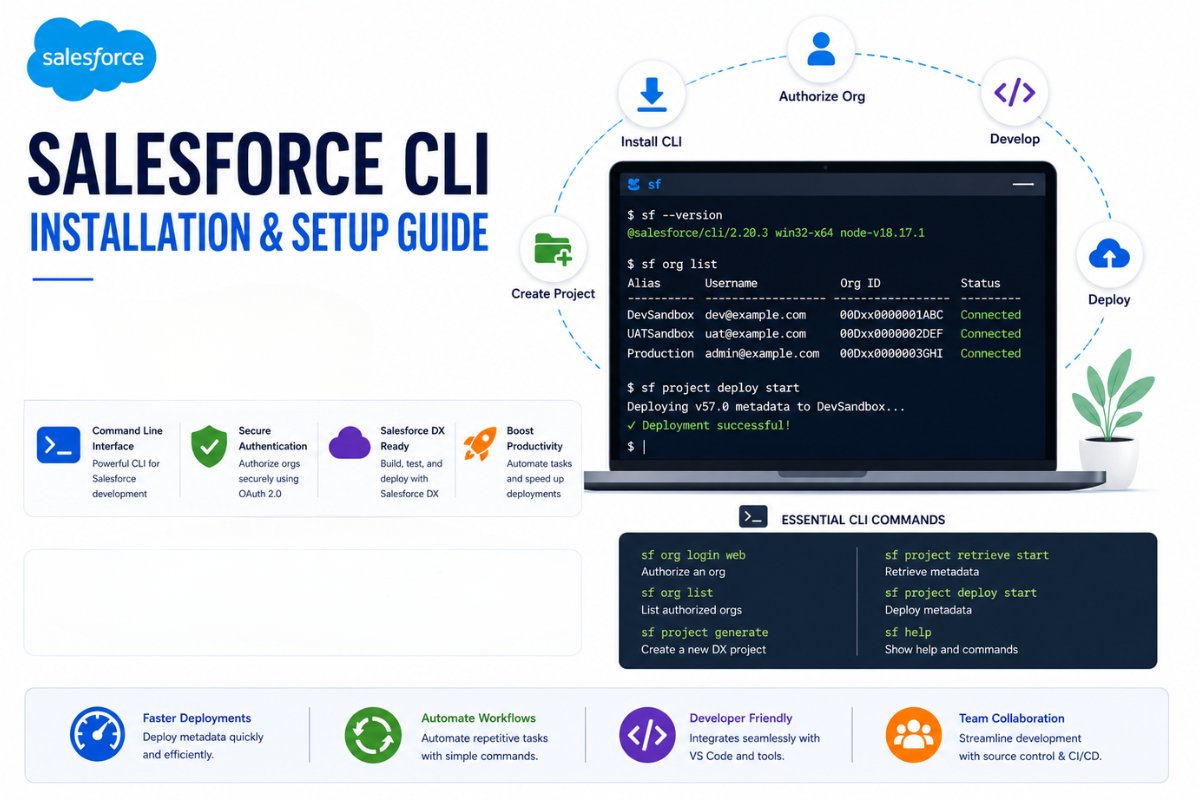
If you are new to Salesforce development, you should also read our guides on Salesforce Workbench Tutorial for Beginners, SOQL Query Examples for Beginners in Salesforce, and Salesforce CLI installation and setup Guide.
Why Salesforce Flow Is Important
Many companies are replacing older automation tools with Flow. Additionally, Salesforce itself recommends using Flow instead of Workflow Rules and Process Builder.
Here are some major reasons why Flow is important.
No Coding Required
Admins can automate processes visually without Apex code.
Powerful Automation
Flow can handle both simple and advanced business logic.
Better User Experience
Screen Flows help users complete tasks step by step.
Salesforce Future Strategy
Salesforce continues investing heavily in Flow features every release.
Therefore, learning Flow is now essential for long-term Salesforce career growth.
Types of Salesforce Flows
Salesforce provides multiple Flow types. Each one serves a different purpose.
Record-Triggered Flow
This Flow runs automatically when a record is created, updated, or deleted.
Examples:
- Send notification when Opportunity closes
- Update Account field after Contact creation
- Create follow-up tasks automatically
Record-triggered Flow is the most commonly used Flow type.
Screen Flow
Screen Flow provides a user interface with screens and input fields.
Examples:
- Employee onboarding forms
- Guided customer support processes
- Data collection forms
Because Screen Flows are interactive, they are very useful for business users.
Scheduled Flow
Scheduled Flow runs automatically at a specific time.
Examples:
- Daily data cleanup
- Weekly email reminders
- Monthly reporting automation
Autolaunched Flow
This Flow runs in the background without screens.
Developers often use autolaunched flows inside:
- Apex
- APIs
- Process automation
Platform Event-Triggered Flow
This Flow responds to platform events and integrations.
Although beginners may not use it immediately, it becomes important in enterprise-level projects.
Salesforce Flow vs Workflow Rules
Many beginners still ask whether Workflow Rules are relevant.
The short answer is no.
Salesforce is gradually moving automation toward Flow because Flow is more flexible and powerful.
| Feature | Workflow Rules | Salesforce Flow |
|---|---|---|
| Future Support | Limited | Active Development |
| Complex Logic | Limited | Advanced |
| User Screens | No | Yes |
| Multiple Actions | Limited | Yes |
| Scalability | Lower | Higher |
As a result, new Salesforce projects should primarily use Flow.
How to Create Your First Salesforce Flow
Now let’s create a simple beginner Flow example.
Example Requirement
When a new Lead is created:
- Automatically set Lead Status to “Working”
Step 1: Open Flow Builder
Go to:
Setup → Flows → New Flow
Then select:
- Record-Triggered Flow
Click Create.
Step 2: Configure Trigger
Choose:
- Object = Lead
- Trigger = When record is created
Next, optimize the Flow for:
- Fast Field Updates
This makes the Flow more efficient.
Step 3: Add Update Logic
Now add an Assignment element.
Set:
- Status = Working
This updates the Lead automatically.
Step 4: Save the Flow
Give the Flow a name:
Lead Status AutomationThen click Save.
Step 5: Activate the Flow
This is important.
Flows do not run until activated.
Click:
- Activate
Now your automation is live.
Salesforce Flow Elements Explained
Flow Builder contains multiple elements.
Understanding these elements is extremely important for beginners.
Assignment
Used to update variable values.
Decision
Works like IF conditions.
Example:
- If Amount > 10000
- Then send approval
Get Records
Fetches Salesforce records.
Similar to SOQL queries in Apex.
If you want to understand database queries better, read our SOQL Query Examples for Beginners in Salesforceguide.
Create Records
Creates new records automatically.
Update Records
Updates existing records.
Delete Records
Deletes records from Salesforce.
Loop
Processes multiple records one by one.
However, loops should be used carefully to avoid performance issues.
Real Salesforce Flow Example
Here is a common real-world example.
Scenario
Whenever an Opportunity becomes Closed Won:
- Automatically create a follow-up task
This type of automation is extremely common in Sales Cloud implementations.
Flow steps:
- Create Record-Triggered Flow
- Select Opportunity object
- Add Decision element
- Check if Stage = Closed Won
- Create Task record
- Activate Flow
This improves sales team productivity significantly.
Salesforce Flow Best Practices
Beginners often create Flows that work initially but become difficult to maintain later.
Therefore, following best practices is very important.
Use Descriptive Names
Bad:
Flow1Good:
Opportunity Closed Won Task FlowAvoid Complex Nested Logic
Large Flows become difficult to debug.
Instead, split logic into smaller reusable Flows when possible.
Test in Sandbox First
Never directly build automation in production.
Always test in:
- Sandbox
- Developer Org
Use Entry Conditions
Entry conditions improve performance because unnecessary Flow runs are avoided.
Add Descriptions
Document your Flow elements clearly.
Future admins will thank you later.
Common Salesforce Flow Mistakes
Too Many Update Elements
Excessive updates can slow down automation.
Instead, combine updates whenever possible.
Infinite Loops
Flows updating the same record repeatedly can create recursion problems.
Therefore, always test automation carefully.
Ignoring Error Handling
Many beginners skip fault paths.
However, proper error handling is critical in production environments.
Hardcoding Values
Avoid hardcoded IDs and values whenever possible.
Use:
- Custom Metadata
- Custom Settings
- Variables
Salesforce Flow vs Apex Trigger
This is one of the most common Salesforce interview topics.
| Salesforce Flow | Apex Trigger |
|---|---|
| No-code automation | Code-based automation |
| Easier for admins | Better for developers |
| Faster setup | More flexible |
| Visual interface | Programmatic logic |
| Best for simple-medium automation | Best for advanced automation |
Generally:
- Use Flow for standard automation
- Use Apex Trigger for complex business logic
If you want to learn coding automation next, check our Salesforce Workbench Tutorial for Beginners article.
How Salesforce Flow Helps Your Career
Salesforce companies actively look for professionals with Flow skills.
Why?
Because almost every Salesforce implementation now uses Flow extensively.
Flow knowledge helps:
- Salesforce Admins
- Business Analysts
- Consultants
- Developers
- Architects
Additionally, Flow questions are now very common in Salesforce interviews and certification exams.
Final Thoughts
Salesforce Flow has become one of the most important automation tools in the Salesforce ecosystem.
Fortunately, beginners can learn Flow much faster than traditional coding-based automation.
Start with:
- Record-triggered Flows
- Simple updates
- Email automation
- Task creation
Then gradually move toward:
- Screen Flows
- Scheduled Flows
- Approval automation
- Advanced decision logic
The more real scenarios you practice, the more confident you will become with Salesforce automation.