





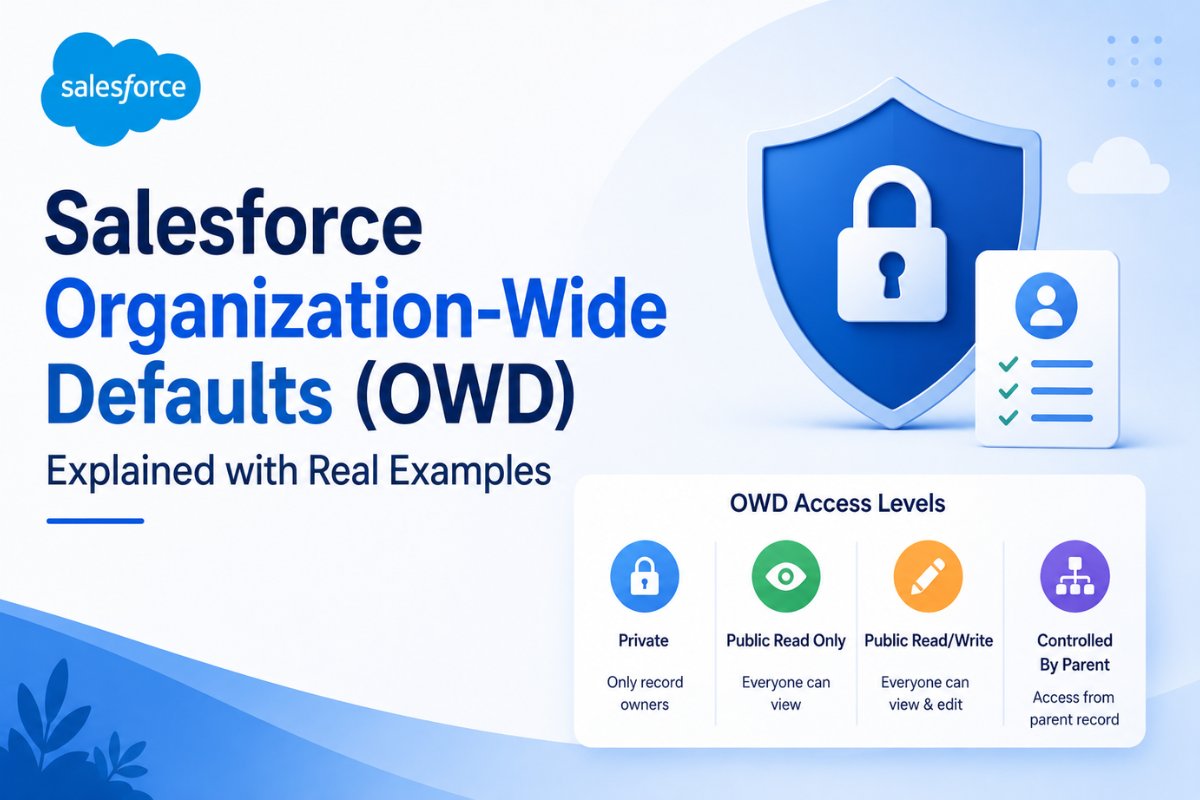
Salesforce Organization-Wide Defaults (OWD) are the foundation of record-level security in Salesforce. If users in your organization cannot see records, or if they can see too many records, the problem usually starts with OWD settings.
Many Salesforce beginners understand profiles and permission sets first. However, they often become confused when users still cannot access records even after permissions are granted. This happens because profiles control what users can do, while OWD controls which records users can access.
In simple words:
- Profiles decide user permissions
- OWD decides record visibility
Because of this, Organization-Wide Defaults are one of the most important topics for Salesforce Admins, Developers, Consultants, and interview preparation.
In this guide, you will learn:
- What OWD in Salesforce means
- Different OWD access levels
- Real-world examples
- How OWD works with sharing rules and role hierarchy
- Common mistakes admins make
- Salesforce OWD best practices
salesforce sharing rules If you are learning Salesforce security, you should also read our guide on and salesforce roles vs profiles because these concepts work together.
What Is Organization-Wide Defaults (OWD) in Salesforce?
Organization-Wide Defaults (OWD) define the baseline level of access users have to records they do not own.
OWD is the most restrictive layer in Salesforce record-level security.
After OWD is configured, Salesforce admins can open additional access using:
- Role Hierarchy
- Sharing Rules
- Manual Sharing
- Teams
- Apex Sharing
- Territory Management
OWD never grants extra access automatically. Instead, it starts with the minimum access and then Salesforce opens access where required.
For example:
Imagine a company where sales representatives should only see their own opportunities. In this case, the Opportunity OWD can be set to Private.
However, sales managers still need visibility into their team’s records. Salesforce can provide that access through the role hierarchy.
This layered security model helps companies protect sensitive business data.
Why OWD Is Important in Salesforce
OWD plays a major role in Salesforce security because companies do not want every user accessing every record.
For example:
- HR records should remain private
- Sales opportunities may be restricted by region
- Support cases may only be visible to support teams
- Finance data should not be accessible to all employees
Without proper OWD settings, sensitive records could become visible to unauthorized users.
Therefore, Salesforce recommends starting with the most restrictive access model and then opening access gradually.
This approach improves:
- Data security
- Compliance
- Privacy
- Performance
- Access control
Types of OWD in Salesforce
Salesforce provides different Organization-Wide Default access levels depending on the object type.
Let us understand each one with examples.
Private OWD
Private is the most restrictive access level.
When OWD is set to Private:
- Users can only access records they own
- Managers may get access through role hierarchy
- Other users cannot see records unless additional sharing is configured
Real Example
Suppose a company has multiple sales teams working in different regions.
The company does not want sales reps from the North region seeing opportunities from the South region.
In this case:
- Opportunity OWD = Private
- Sales reps only see their own opportunities
- Managers see team records through role hierarchy
This setup is very common in real Salesforce organizations.
When to Use Private OWD
Use Private OWD when:
- Data is sensitive
- Teams should not access each other’s records
- Departments work independently
- Security is a high priority
Public Read Only OWD
When OWD is set to Public Read Only:
- All users can view records
- Only owners or authorized users can edit records
Real Example
A company wants all employees to view Accounts for collaboration, but only account owners should modify records.
In this case:
- Account OWD = Public Read Only
- Everyone can view accounts
- Editing remains restricted
This setup improves collaboration while protecting data integrity.
When to Use Public Read Only
Use this setting when:
- Users need visibility
- Editing should remain controlled
- Teams collaborate frequently
Public Read/Write OWD
When OWD is set to Public Read/Write:
- All users can view records
- All users can edit records
Real Example
A small startup team works together on shared projects.
Since everyone collaborates closely, the company allows full access to project records.
In this case:
- Custom Project Object OWD = Public Read/Write
All users can work freely on shared records.
When to Use Public Read/Write
Use this setting only when:
- Security restrictions are not required
- Teams fully collaborate
- Data sensitivity is low
Most enterprise organizations avoid Public Read/Write for sensitive objects.
Controlled By Parent OWD
Controlled By Parent means child record access depends on the parent record.
This setting is commonly used in Master-Detail Relationships.
Real Example
Suppose:
- Account is the parent object
- Invoice is the child object
If a user can access the Account, they automatically get access to related Invoice records.
When to Use Controlled By Parent
Use this setting when:
- Child records should inherit parent security
- You use Master-Detail Relationships
- Security should remain simple
How OWD Works with Role Hierarchy
OWD and Role Hierarchy work together in Salesforce security.
OWD defines the baseline access.
Role hierarchy then opens access upward in the organization structure.
Example
Suppose:
- Opportunity OWD = Private
- Sales Rep owns opportunity records
- Sales Manager is above Sales Rep in hierarchy
Result:
- Sales Rep sees only own opportunities
- Sales Manager sees team opportunities
This setup allows managers to supervise team performance without changing OWD.
You can learn more in our guide on salesforce roles vs profiles
How OWD Works with Sharing Rules
Sometimes role hierarchy alone is not enough.
For example:
- Finance team needs access to Closed Won opportunities
- Support team needs access to premium customer cases
In these scenarios, Salesforce Sharing Rules extend access.
Example
Suppose:
- Opportunity OWD = Private
- Finance team needs access to Closed Won deals
Admin creates a criteria-based sharing rule:
- Stage = Closed Won
- Share with Finance Team
Now Finance users can access those records automatically.
Read our detailed guide on salesforce sharing rules to understand this concept better.
How to Configure OWD in Salesforce
Follow these steps to configure Organization-Wide Defaults in Salesforce.
Step 1: Open Setup
Go to:
Setup → Sharing Settings
Step 2: Find Organization-Wide Defaults
Scroll to the Organization-Wide Defaults section.
Step 3: Click Edit
Click the Edit button.
Step 4: Choose Access Level
Select access for each object:
- Private
- Public Read Only
- Public Read/Write
- Controlled By Parent
Step 5: Save Changes
Click Save.
Salesforce may recalculate sharing access depending on org size.
Real-World OWD Scenarios
Scenario 1: Sales Department
Requirement:
Sales reps should only access their own opportunities.
Solution:
- Opportunity OWD = Private
- Managers access through role hierarchy
Scenario 2: Customer Support Team
Requirement:
All support agents should view cases but only owners edit them.
Solution:
- Case OWD = Public Read Only
Scenario 3: HR Department
Requirement:
Employee records must remain confidential.
Solution:
- Employee Object OWD = Private
- Additional sharing only for HR managers
Common OWD Mistakes Beginners Make
Setting Everything to Public Read/Write
This creates major security risks.
Always follow the principle of least privilege.
Confusing Profiles with OWD
Profiles control object permissions.
OWD controls record visibility.
Both are different.
Forgetting Role Hierarchy
Many admins set OWD to Private but forget managers need access.
Role hierarchy solves this issue.
Using Sharing Rules Instead of Proper OWD
OWD should define the baseline first.
Sharing rules should only extend access where needed.
Salesforce Security Model Hierarchy
Salesforce security works in layers.
Typical order:
- Object-Level Security
- Field-Level Security
- OWD
- Role Hierarchy
- Sharing Rules
- Manual Sharing
- Apex Sharing
Understanding this hierarchy is very important for interviews and real projects.
OWD Best Practices in Salesforce
Start with Private Access
Salesforce recommends beginning with the most restrictive model.
Then open access gradually.
Keep Security Simple
Avoid unnecessary sharing complexity.
Simple models are easier to maintain.
Use Sharing Rules Carefully
Too many sharing rules can affect performance.
Review Access Regularly
Business requirements change over time.
Audit your sharing settings periodically
Document Security Decisions
Always document:
- OWD settings
- Sharing rules
- Role hierarchy logic
This helps future admins understand the security mode
OWD Interview Questions
What is OWD in Salesforce?
OWD defines the baseline record access users have to records they do not own.
Can OWD Grant More Access?
No.
OWD usually restricts access. Additional access is opened using sharing mechanismsWhat Happens If OWD Is Private?
Users only access owned records unless additional sharing is configured.
Difference Between OWD and Profiles?
Profiles control actions.
OWD controls record visibility.
Final Thoughts
Salesforce Organization-Wide Defaults (OWD) are the core foundation of Salesforce record-level security. Without understanding OWD properly, it becomes difficult to manage sharing rules, role hierarchy, and secure data access.
The best approach is always:
- Start with restrictive access
- Open access only where required
- Keep the security model simple
- Use sharing rules strategically
Once you master OWD, understanding advanced Salesforce security becomes much easier.


