





Generating an access token is one of the first challenges developers face when working with Salesforce APIs. You may have a Connected App configured correctly, the API endpoint may be valid, and Postman may be installed, but every request still fails because Salesforce requires authentication before allowing access to data.
Without an access token, Salesforce rejects API requests and returns authentication errors. That’s why understanding How to Generate a Salesforce Access Token Using Postman is an essential skill for Salesforce developers, integration specialists, and administrators working with external systems.
An access token acts as a temporary authorization key that allows Postman or another application to communicate securely with Salesforce APIs. Once the token is generated, it can be used to retrieve records, create data, update records, and test custom REST endpoints.
In this guide, you’ll learn how access tokens work, how OAuth authentication works in Salesforce, how to configure Postman, and how to successfully generate an access token step by step.

What Is a Salesforce Access Token?
A Salesforce access token is a temporary credential generated through OAuth authentication.
Instead of sending your Salesforce username and password with every API request, Salesforce issues an access token after successful authentication. Applications then use this token to access Salesforce resources securely.
A typical access token looks similar to:
00DXXXXXXXXXXXX!AQMAQJk......
Although the token appears as a random string, it represents authenticated access to Salesforce APIs.
Once generated, the token can be included in API requests using the Authorization header.
Authorization: Bearer ACCESS_TOKEN
This approach improves security because passwords are not repeatedly transmitted between systems.
Why Is an Access Token Required?
Salesforce APIs contain sensitive business data. Allowing unrestricted access would create serious security risks.
Because of this, Salesforce uses OAuth 2.0 authentication.
Before an application can access:
- Accounts
- Contacts
- Opportunities
- Cases
- Custom Objects
- Apex REST Services
Salesforce must verify the identity of the requesting application.
An access token serves as proof that authentication has already occurred.
If you’re new to API authentication, it’s helpful to first understand How to Set Up a Connected App in Salesforce for API Integration, since access token generation depends on a properly configured Connected App.
How Salesforce OAuth Authentication Works
Before creating an access token, it’s important to understand the overall process.
User
   ↓
Connected App
   ↓
Consumer Key
Consumer Secret
   ↓
OAuth Authentication
   ↓
Access Token Generated
   ↓
Postman
   ↓
Salesforce API
The process starts when Postman sends authentication details to Salesforce.
Salesforce validates the Connected App configuration, verifies credentials, and returns an access token.
That token is then used for all future API requests.
Understanding this flow makes troubleshooting much easier when authentication issues occur.
Prerequisites
Before generating an access token, make sure you have:
- Salesforce account
- Connected App
- Consumer Key
- Consumer Secret
- Postman installed
- API Enabled permission
If you haven’t created a Connected App yet, complete that setup first because Salesforce will not generate access tokens without it.
Step 1: Create a Connected App
The first step is creating a Connected App inside Salesforce.
Navigate to:
Setup
    ↓
App Manager
    ↓
New Connected App
Provide:
- Connected App Name
- Contact Email
- API Name
Then enable OAuth settings.
For Postman authentication, many developers use:
https://oauth.pstmn.io/v1/callback
as the callback URL.
Next, select OAuth scopes.
Common choices include:
Access and manage your data (api)
and
Perform requests at any time
(refresh_token, offline_access)
Save the Connected App and wait several minutes for Salesforce to activate the configuration.

Step 2: Retrieve the Consumer Key and Consumer Secret
After the Connected App becomes active, open the application details page.
Locate:
Consumer Key
and
Consumer Secret
These values identify your application during authentication.
Think of them as:
- Application Username
- Application Password
You will need both values when configuring Postman.
Store them securely because they provide access to Salesforce authentication services.
Step 3: Open Postman
Launch Postman and create a new request.
Select:
POST
as the HTTP method.
Authentication requests must be sent using POST because credentials are included in the request body.
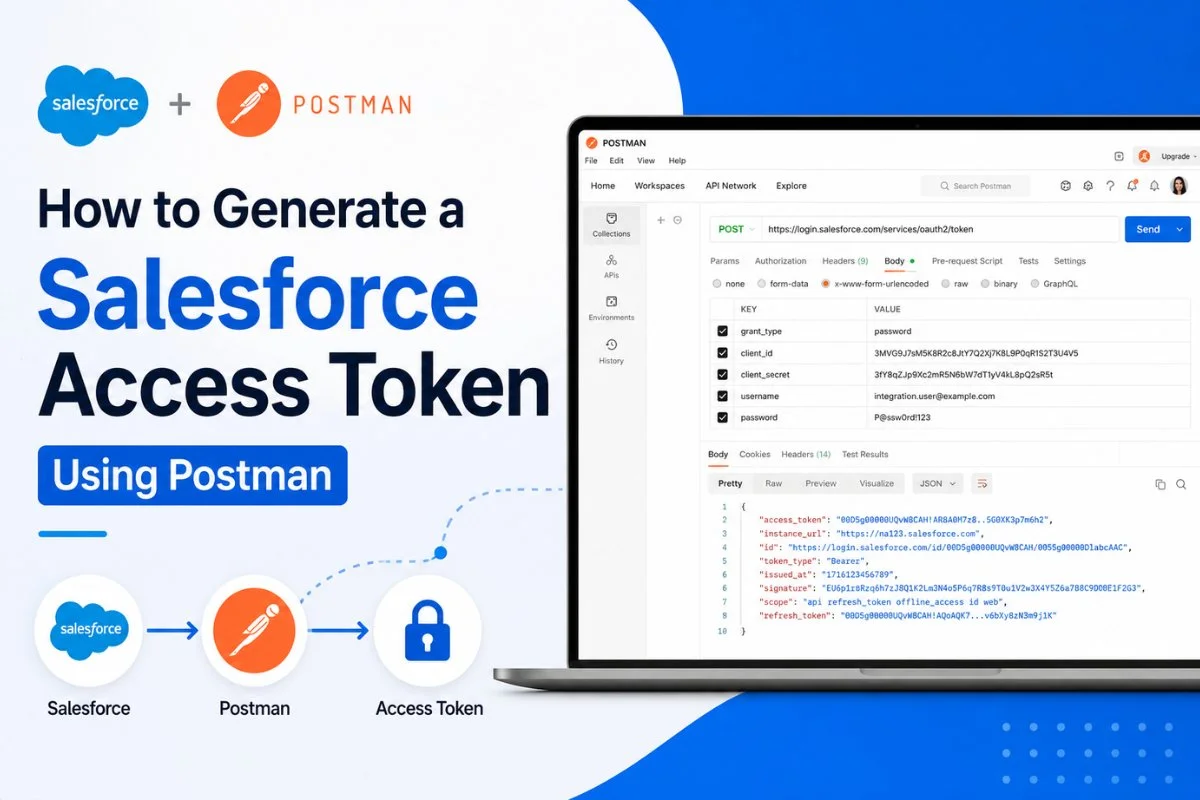
Next, enter the Salesforce OAuth token endpoint.
Production Org
https://login.salesforce.com/services/oauth2/token
Sandbox Org
https://test.salesforce.com/services/oauth2/token
Many authentication issues occur because developers accidentally use the production URL for sandbox organizations or vice versa.
Always verify which environment you’re connecting to.
Why Use Postman for Salesforce API Testing?
Postman has become one of the most popular API testing tools because it simplifies authentication and API validation.
Instead of writing code immediately, developers can:
- Generate tokens
- Test endpoints
- Validate responses
- Troubleshoot authentication
- Verify integrations
before development begins.
In many Salesforce projects, Postman becomes the primary tool for testing APIs during implementation.
A good next step after generating a token is exploring the concepts covered in a Salesforce REST API Tutorial, where access tokens are used to retrieve and update Salesforce data.
Real Developer Experience
I first used Postman while testing a custom integration between Salesforce and a customer-facing portal. The API endpoint looked correct, the Connected App existed, and the credentials appeared valid. However, every request returned an authentication error.
After reviewing the setup, I discovered that the sandbox token endpoint was being used with production credentials. Once the correct endpoint was configured, Salesforce immediately returned an access token and the integration started working. Since then, checking the login URL has become one of the first troubleshooting steps I perform.
Common Authentication Components
Before generating a token, it’s useful to understand the parameters Salesforce expects.
| Parameter | Purpose |
|---|---|
| grant_type | Authentication flow type |
| client_id | Consumer Key |
| client_secret | Consumer Secret |
| username | Salesforce username |
| password | Salesforce password and security token |
Each parameter plays an important role in the authentication process.
In the next section, we’ll configure Postman parameters, generate the access token, call Salesforce APIs, troubleshoot common errors, and review security best practices.
Step 4: Configure Request Parameters in Postman
Now it’s time to send the authentication request.
Inside Postman, open the Body tab and select:
x-www-form-urlencoded
Add the following parameters:
| Key | Value |
|---|---|
| grant_type | password |
| client_id | Consumer Key |
| client_secret | Consumer Secret |
| username | Salesforce Username |
| password | Password + Security Token |
Your configuration should look similar to this:
grant_type=password

client_id=3MVG9xxxxxx

client_secret=195527xxxxxx

[email protected]

password=MyPasswordSecurityToken
One mistake many developers make is forgetting to append the security token to the password.
Salesforce expects:
Password + Security Token
Example:
MyPasswordXyz123ABC456
If the security token is missing, Salesforce may reject the request even when the username and password are correct.
Step 5: Send the Request
After entering all required parameters, click:
Send
Postman sends the authentication request to Salesforce.
If everything is configured correctly, Salesforce immediately returns a JSON response containing an access token.
A successful response typically looks like this:
{
  "access_token": "00Dxx0000001ABC!AQ0AQM...",
  "instance_url": "https://yourorg.my.salesforce.com",
  "id": "https://login.salesforce.com/id/00Dxx0000001ABC/005xx000001XYZ",
  "token_type": "Bearer",
  "issued_at": "1754632000000",
  "signature": "ABC123XYZ456"
}
This response confirms that authentication was successful.
Understanding the Response
Many beginners focus only on the access token, but several fields returned by Salesforce are important.
Access Token
Used to authenticate API requests.
Instance URL
Specifies which Salesforce instance should receive API requests.
Example:
https://yourorg.my.salesforce.com
Token Type
Usually:
Bearer
Signature
Used by Salesforce internally for validation.
In most integrations, the two most important values are:
- access_token
- instance_url
These values are required when calling Salesforce APIs.

Step 6: Use the Access Token to Call Salesforce APIs
Generating the token is only the beginning.
The real purpose of authentication is accessing Salesforce data.
Create a new GET request in Postman.
URL:
https://yourorg.my.salesforce.com/services/data/v64.0/
Inside Headers:
Authorization: Bearer ACCESS_TOKEN
Example:
Authorization: Bearer 00Dxx0000001ABC!AQ0AQM...
Click Send.
Salesforce should return available API resources.
This confirms that:
- Authentication works
- Access token is valid
- API access is enabled
At this stage, you can begin testing REST API endpoints.
Developers often use this approach before building integrations covered in our Types of Salesforce Integrations: Complete Guide for Beginners guide because it helps validate authentication before writing code.
Calling a Salesforce Object API
Let’s retrieve Account records.
Example URL:
https://yourorg.my.salesforce.com/services/data/v64.0/query/?q=SELECT+Id,Name+FROM+Account
Headers:
Authorization: Bearer ACCESS_TOKEN
Response:
{
  "totalSize": 2,
  "done": true,
  "records": [
    {
      "Id": "001XXXXXXXXXXXX",
      "Name": "Acme Corporation"
    }
  ]
}
At this point, you’re successfully interacting with Salesforce using Postman.
Calling a Custom Apex REST API
Many organizations expose custom business logic through Apex REST services.
Example endpoint:
/services/apexrest/AccountService
Request:
GET
Header:
Authorization: Bearer ACCESS_TOKEN
This allows external applications to communicate with custom Salesforce functionality.
If you’re planning to build larger integrations, understanding Salesforce Integration Best Practices can help you design APIs that remain secure and scalable.
Sandbox vs Production Authentication
A surprisingly common mistake involves using the wrong authentication URL.
Production
https://login.salesforce.com/services/oauth2/token
Sandbox
https://test.salesforce.com/services/oauth2/token
Using the wrong endpoint often causes authentication failures.
Whenever a token request fails unexpectedly, verify the environment first.
I have personally spent more time troubleshooting incorrect login URLs than actual OAuth configuration issues.
Common Errors and Solutions
Authentication problems are extremely common when generating Salesforce access tokens.
Fortunately, most of them are easy to fix.
| Error | Cause | Solution |
|---|---|---|
| invalid_grant | Incorrect credentials | Verify username and password |
| invalid_client | Wrong Consumer Key | Check Connected App |
| invalid_client_id | Invalid Client ID | Verify Consumer Key |
| inactive user | User deactivated | Activate user |
| ip restricted | Login IP restriction | Update security settings |
| insufficient access | Missing permissions | Check profile permissions |
| invalid scope | OAuth scope issue | Update Connected App scopes |
Most access token issues are configuration-related rather than Salesforce platform issues.
How to Fix invalid_grant Authentication Failure
This is one of the most common Salesforce OAuth errors.
Example:
{
  "error": "invalid_grant",
  "error_description": "authentication failure"
}
Possible causes:
- Wrong password
- Missing security token
- Incorrect username
- Login IP restrictions
- User locked out
According to Salesforce integration documentation and community troubleshooting guides, missing security tokens are among the most frequent causes of authentication failures.
Whenever I encounter this error, the first thing I check is whether the security token has been appended correctly.
Security Best Practices
Generating access tokens is simple, but protecting them is critical.
Never:
- Share access tokens publicly
- Store Consumer Secrets in source code
- Send credentials through unsecured channels
Instead:
- Use dedicated integration users
- Rotate credentials periodically
- Restrict OAuth scopes
- Monitor login history
- Review Connected App access
Organizations handling sensitive customer data should treat access tokens like passwords.
A compromised token can potentially provide access to Salesforce records.
When Should You Use Postman?
Postman is useful for:
- API testing
- Integration development
- Authentication validation
- Endpoint debugging
- Learning Salesforce APIs
However, production applications should implement authentication programmatically rather than manually generating tokens through Postman.
Postman is primarily a development and testing tool.
Real Project Example
During a customer integration project, an external application needed to create Leads automatically inside Salesforce.
Before writing any code, we generated an access token through Postman and tested every API endpoint manually. This helped identify permission issues, object access problems, and authentication configuration errors before development started.
As a result, the actual integration was completed much faster because the API layer had already been validated.
That experience reinforced an important lesson: always test authentication first.
Frequently Asked Questions
What is a Salesforce access token?
A temporary authentication credential used to access Salesforce APIs.
Why do I need an access token?
Salesforce requires authentication before allowing API access.
Can I generate an access token without a Connected App?
No. OAuth authentication depends on a Connected App configuration.
Does Postman work with Salesforce Sandbox?
Yes. Use the sandbox login endpoint.
What is the Consumer Key?
The Consumer Key identifies the Connected App during authentication.
What is the Consumer Secret?
The Consumer Secret acts as the application’s password.
Why am I getting invalid_grant?
Usually because of incorrect credentials or a missing security token.
How long does an access token last?
The duration depends on Salesforce session settings and security policies.
Can I use the same token for multiple requests?
Yes, until the token expires.
Is Postman required for Salesforce API testing?
No, but it is one of the easiest tools for testing APIs.
Conclusion
Understanding How to Generate a Salesforce Access Token Using Postman is a fundamental skill for Salesforce developers and integration professionals. An access token serves as the bridge between external applications and Salesforce APIs, allowing secure communication without exposing user credentials.
By creating a Connected App, retrieving the Consumer Key and Consumer Secret, configuring Postman correctly, and validating authentication through OAuth 2.0, you can quickly begin testing Salesforce APIs and building integrations.
One thing I’ve learned from working on Salesforce integrations is that most authentication issues are caused by small configuration mistakes rather than Salesforce itself. Incorrect login URLs, missing security tokens, invalid OAuth scopes, and permission issues account for the majority of failures. Spending a few extra minutes reviewing these settings can save hours of troubleshooting later.


