


Businesses rely on Salesforce to manage customers, automate processes, and store valuable business data. As an organization grows, more users, administrators, and developers start making changes across the Salesforce org. Because of this, tracking those changes becomes essential for security, compliance, troubleshooting, and data accuracy.
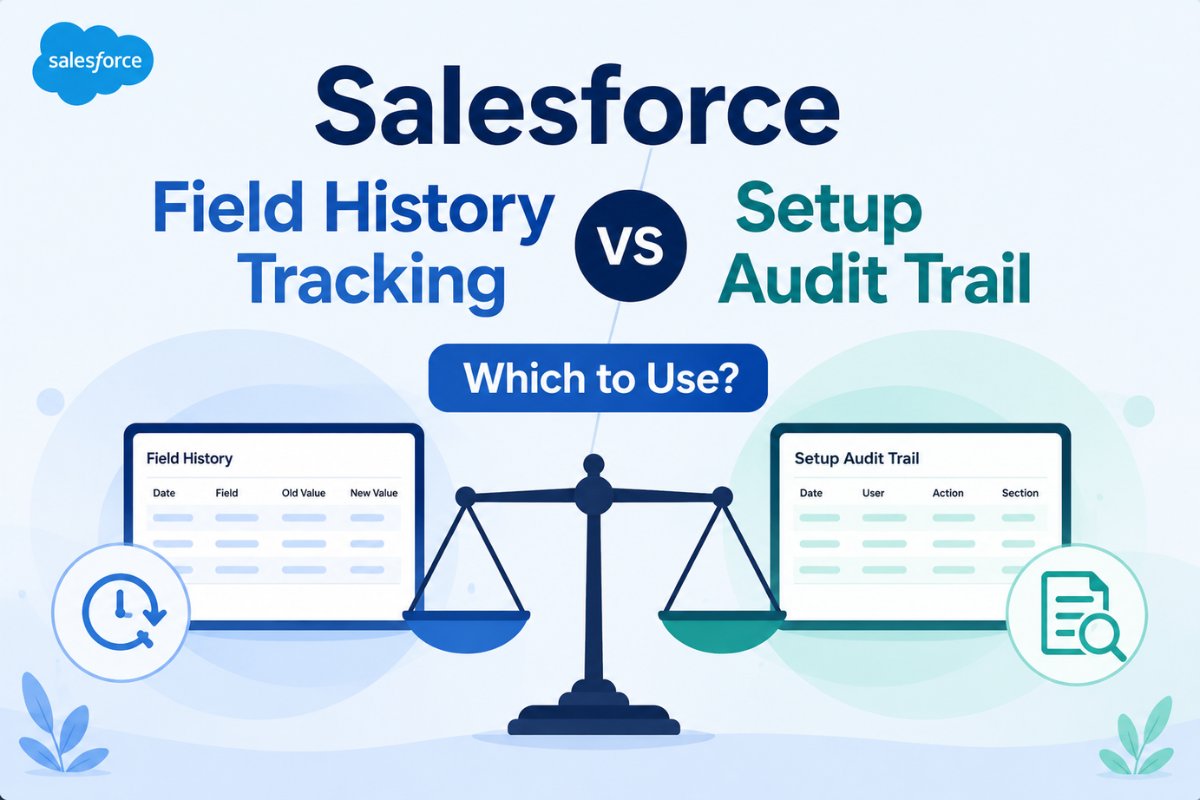
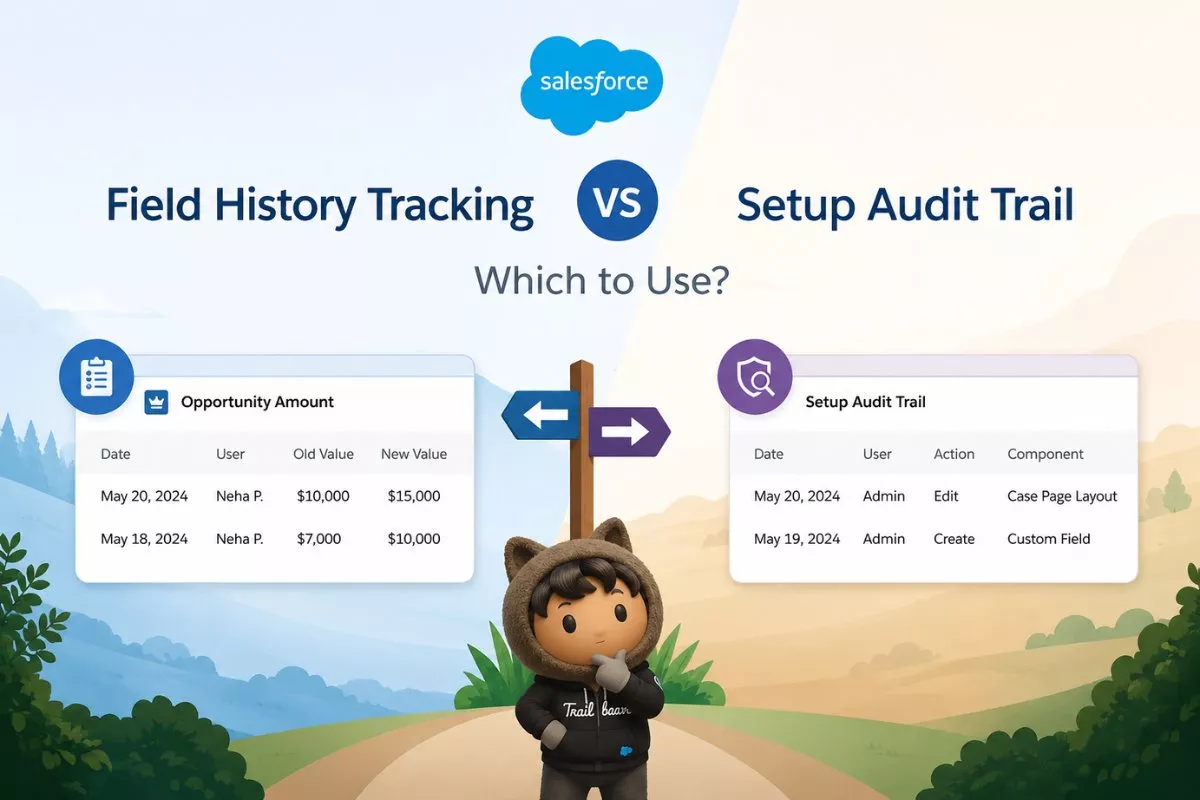
This is where Salesforce Field History Tracking vs Setup Audit Trail comparison in Salesforce Lightning becomes an important comparison. Although both features record changes, they solve completely different problems. Field History Tracking records changes made to specific record fields, while Setup Audit Trail monitors configuration and administrative changes made inside Salesforce Setup.
Many Salesforce admins assume these features are interchangeable. However, choosing the wrong one can leave critical activities untracked. Therefore, understanding when to use each feature helps you maintain better governance, improve troubleshooting, and satisfy compliance requirements.
In this guide, you’ll learn the differences between Salesforce Field History Tracking and Setup Audit Trail, their limitations, practical use cases, and best practices for deciding which feature fits your business needs.
What Is Salesforce Field History Tracking?
Salesforce Field History Tracking is a standard feature that records changes made to selected fields on a record. Whenever a tracked field changes, Salesforce stores important details about that update.
The system records:
- Previous value
- New value
- User who made the change
- Date and time of the change
As a result, administrators can easily determine what changed, when it changed, and who made the update.
For example, imagine a sales representative updates an Opportunity Stage from Proposal to Closed Won. If Stage is being tracked, Salesforce automatically stores the previous value, the updated value, the username, and the timestamp.
This feature is especially useful when organizations need transparency around important business data.
Image Prompt (Place after this section)

How Salesforce Field History Tracking Works
Field History Tracking works at the object level. Administrators simply choose which fields should be monitored.
Once enabled, Salesforce automatically creates a related History object for that standard or custom object.
For example:
| Object | History Object |
|---|---|
| Account | Account History |
| Opportunity | Opportunity History |
| Case | Case History |
| Custom Object | CustomObject__History |
Users can view the history directly from the related list on the record page.
In addition, administrators can create reports using history objects to analyze how records have changed over time.
If your organization frequently performs data cleanup before imports, combining Field History Tracking with Salesforce Data Migration: A Step-by-Step Guide for Admins helps validate that important field values remain accurate after migration.
What Information Does Field History Tracking Capture?
Whenever a tracked field changes, Salesforce records several important details.
These include:
- User who made the update
- Previous field value
- New field value
- Date of the change
- Time of the change
Because every modification is logged automatically, organizations gain a reliable audit trail for business-critical records.
However, not every field type supports history tracking. Certain system-generated fields and some special field types cannot be monitored.
Salesforce Field History Tracking Limits
Although Field History Tracking is extremely useful, Salesforce places several limits on the feature.
| Feature | Standard Limit |
|---|---|
| Fields per Object | 20 |
| Online History Retention | 18 Months |
| API Access | 24 Months |
| Automatic Enablement | No |
The biggest limitation is the maximum of 20 tracked fields per object. Therefore, administrators should carefully select only the fields that truly require monitoring.
Organizations with strict compliance requirements often need longer retention periods and additional tracked fields. In those situations, Salesforce Shield’s Field Audit Trail becomes a better solution.
Common Use Cases for Field History Tracking
Many Salesforce teams enable Field History Tracking to improve visibility into business processes.
Some common examples include:
Opportunity Stage Changes
Sales managers often want to know how deals progress through the sales pipeline.
Tracking Opportunity Stage allows managers to identify stalled deals and evaluate sales performance.
Case Status Updates
Support managers frequently monitor Case Status changes.
This helps measure response times, identify workflow delays, and improve customer service performance.
Lead Ownership
Sales organizations regularly reassign leads between representatives.
Tracking Lead Owner changes improves accountability and simplifies reporting.
Sensitive Customer Information
Companies working with regulated industries often monitor fields such as:
- Credit Limit
- Customer Status
- Contract Value
- Payment Terms
Consequently, compliance teams can review every change made to sensitive business information.
How to Enable Salesforce Field History Tracking
Enabling Field History Tracking requires only a few configuration steps.
- Open Setup.
- Navigate to Object Manager.
- Select the desired object.
- Open Fields & Relationships.
- Click Set History Tracking.
- Enable history tracking.
- Select the fields you want to monitor.
- Save your changes.
After enabling tracking, remember to add the History related list to the page layout. Otherwise, users will not see the recorded history on records.
Most administrators complete this setup in only a few minutes.
What Is Setup Audit Trail?
While Field History Tracking focuses on record-level changes, Setup Audit Trail monitors changes made inside Salesforce Setup.
Instead of tracking customer records, Setup Audit Trail records administrative activities that affect your Salesforce environment.
These activities include:
- Creating users
- Deleting users
- Permission Set changes
- Profile updates
- Validation Rule changes
- Flow activation
- Apex deployment
- Object creation
- Field creation
- Security configuration updates
Because Setup Audit Trail records metadata changes instead of record updates, it serves a completely different purpose than Field History Tracking.

Why Setup Audit Trail Matters
Imagine a validation rule suddenly starts blocking Opportunity updates.
Users begin reporting errors, but nobody remembers making configuration changes.
Instead of checking every Flow or Apex class manually, an administrator opens Setup Audit Trail.
Within seconds, the log shows:
- Who modified the validation rule
- When it happened
- Which configuration changed
As a result, troubleshooting becomes much faster.
Similarly, organizations that manage multiple sandboxes can combine Setup Audit Trail withSalesforce Sandbox Types Explained: Developer, Developer Pro, Partial Copy, and Full to understand where configuration changes should be tested before production deployment.
Key Features of Setup Audit Trail
Setup Audit Trail automatically records administrative activities across your Salesforce org. Unlike Field History Tracking, it doesn’t require any configuration or object-level setup.
Every entry includes:
- User who made the change
- Action performed
- Date and time
- Component that was modified
Admins can review the latest changes directly from Setup or export the audit history for deeper analysis.
Although the Setup Audit Trail displays only recent entries in the user interface, Salesforce retains audit history for approximately six months, which can be downloaded as a CSV file when needed.
Common Use Cases for Setup Audit Trail
Setup Audit Trail is useful whenever administrators need visibility into metadata and configuration changes.
Security Monitoring
Suppose a user suddenly gains access to confidential records.
Rather than checking every profile manually, an administrator can review the Setup Audit Trail to determine whether someone modified a Permission Set, Profile, or Sharing Rule.
Troubleshooting Configuration Issues
Sometimes a Flow starts failing immediately after a deployment.
Instead of guessing what changed, Setup Audit Trail quickly identifies recently modified Flows, Validation Rules, Apex Classes, or Custom Fields.
Compliance Audits
Many organizations must demonstrate who changed security settings and when those changes occurred.
Because Setup Audit Trail maintains administrative logs, auditors can easily verify configuration changes.
Team Collaboration
Large Salesforce teams often have multiple administrators working simultaneously.
Setup Audit Trail provides transparency by showing exactly which administrator modified a component.
Organizations that frequently deploy new functionality should also follow Greenfield vs Brownfield Salesforce Implementations: Differences because implementation strategy directly affects long-term change management and governance.
Salesforce Field History Tracking vs Setup Audit Trail
Although both features record changes, they monitor completely different parts of Salesforce.
| Feature | Field History Tracking | Setup Audit Trail |
|---|---|---|
| Tracks Record Changes | Yes | No |
| Tracks Setup Changes | No | Yes |
| Shows Old & New Values | Yes | No |
| Maximum Fields | 20 per Object | Not Applicable |
| User Information | Yes | Yes |
| Timestamp | Yes | Yes |
| Reporting Support | Yes | Limited |
| Best For | Business Data | Metadata & Admin Changes |
This comparison makes one thing clear: these tools are not competitors. Instead, they complement each other.
When Should You Use Field History Tracking?
Field History Tracking is the better option when your goal is monitoring business data.
Choose it if you need to:
- Track Opportunity Stage changes
- Monitor Lead Status updates
- Audit Case Priority modifications
- Record Account ownership changes
- Monitor important custom fields
- Review customer information updates
Sales teams, service teams, and business analysts rely on this feature every day because it provides complete visibility into record-level changes.
When Should You Use Setup Audit Trail?
Setup Audit Trail is designed for administrators rather than business users.
It becomes the preferred option when you need to:
- Monitor Profile changes
- Review Permission Set updates
- Track Validation Rule modifications
- Audit Flow deployments
- Review Apex deployments
- Monitor Custom Object creation
- Check Security Setting changes
- Investigate administrator activity
Rather than focusing on customer records, this feature protects the Salesforce environment itself.
Can You Use Both Features Together?
Absolutely.
In fact, most well-managed Salesforce organizations use both features simultaneously.
Consider this example.
A sales manager notices that Opportunity records are no longer updating correctly.
Field History Tracking shows exactly which Opportunity fields changed before the issue occurred.
Meanwhile, Setup Audit Trail reveals that an administrator modified a Validation Rule earlier that morning.
Together, these two features provide the complete picture.
As your org grows, combining multiple monitoring tools creates stronger governance. Likewise, administrators working with lookup rollups often pair these features with How to Use DLRS in Salesforce for Lookup Roll-Up Summaries to validate automated updates.
Field History Tracking Limitations
Although the feature is extremely useful, administrators should understand its limitations.
Some important restrictions include:
- Maximum of 20 tracked fields per object
- History retained online for 18 months
- API access limited to 24 months
- Some field types cannot be tracked
- Existing historical changes cannot be recovered after enabling tracking
Planning ahead helps avoid these limitations later.
Setup Audit Trail Limitations
Setup Audit Trail also has several limitations.
For example:
- It doesn’t track record data.
- Old and new field values are unavailable.
- Reporting options are limited.
- Audit history should be exported regularly for long-term retention.
Despite these limitations, Setup Audit Trail remains one of the most valuable troubleshooting tools available to Salesforce administrators.
Best Practices
Organizations achieve the best results when they follow a few simple practices.
- Enable Field History Tracking only for business-critical fields.
- Avoid using all 20 tracked fields unless absolutely necessary.
- Review Setup Audit Trail regularly after deployments.
- Export audit history periodically for long-term compliance.
- Test configuration changes in a sandbox before deploying them to production.
- Document major configuration changes for future reference.
- Periodically review tracked fields to remove unnecessary history.
Following these practices keeps your Salesforce org easier to maintain and audit.
Frequently Asked Questions
What is the difference between Salesforce Field History Tracking and Setup Audit Trail?
Field History Tracking records changes made to record fields, while Setup Audit Trail records administrative and metadata changes made in Salesforce Setup.
How many fields can Salesforce Field History Tracking monitor?
Standard Salesforce allows tracking up to 20 fields per object.
Does Setup Audit Trail track record updates?
No. Setup Audit Trail only tracks administrative changes made inside Salesforce Setup.
Can both features be used together?
Yes. Most organizations use both features because they monitor different types of changes.
Which feature is better for compliance?
If you need to audit business records, Field History Tracking is the better choice. If you need to monitor administrator activities and security changes, Setup Audit Trail is more appropriate. Many compliance-driven organizations enable both.
Final Thoughts
Understanding the difference between Salesforce Field History Tracking vs Setup Audit Trail helps administrators monitor both business data and system configuration more effectively. While Field History Tracking focuses on record-level changes, Setup Audit Trail provides visibility into administrative activities happening behind the scenes.
Rather than choosing one feature over the other, most organizations benefit from using both together. This combination improves troubleshooting, strengthens security, supports compliance requirements, and gives administrators complete visibility into what is happening across the Salesforce org.
Related Articles
- Salesforce Sandbox Types Explained: Developer, Developer Pro, Partial Copy, and Full
- Salesforce Data Migration: A Step-by-Step Guide for Admins
- Salesforce Technical Debt: What It Is and How to Reduce It
- Greenfield vs Brownfield Salesforce Implementations: Differences
- How to Use DLRS in Salesforce for Lookup Roll-Up Summaries