Salesforce admins and developers regularly work with records, metadata, API names, SOQL queries, and exports. However, doing everything from Salesforce Setup or Developer Console can sometimes feel slow and repetitive.
That is why many professionals use the Salesforce Inspector Chrome Extension.
This lightweight browser extension adds powerful productivity tools directly inside Salesforce. Instead of opening multiple pages, you can quickly inspect records, run SOQL queries, export data, and view metadata from a single interface.
In this Salesforce Inspector Chrome Extension Guide, you will learn:
- What Salesforce Inspector is
- How to install Salesforce Inspector
- Key features every beginner should know
- How to use SOQL queries inside the extension
- How Salesforce admins and developers use it daily
- Best practices and limitations
If you are starting your Salesforce journey, this tool can save you a huge amount of time.
What Is Salesforce Inspector?
Salesforce Inspector is a Chrome browser extension designed to improve the Salesforce user experience.
The extension provides quick access to:
- Salesforce data
- Metadata
- API names
- SOQL query tools
- Export options
- Org information
Once installed, Salesforce Inspector works directly inside your Salesforce org.
Because of this, admins and developers can complete tasks much faster without constantly navigating through Setup pages.
Why Salesforce Inspector Is So Popular
Many Salesforce tasks require multiple clicks.
For example:
- Finding field API names
- Exporting records
- Running SOQL queries
- Checking hidden field values
- Viewing metadata
Normally, these tasks require different Salesforce tools.
However, Salesforce Inspector combines many of these features into one simple extension.
As a result, productivity improves significantly.
How to Install Salesforce Inspector Chrome Extension
Installing Salesforce Inspector is simple and only takes a few minutes.
Step 1: Open the Chrome Web Store
Search for:
Salesforce Inspector Advanced
Install the extension from the official Chrome Web Store.
Step 2: Add the Extension to Chrome
Click the Add to Chrome button.
Then confirm the installation request.
After installation, the extension icon appears in your browser toolbar.
Step 3: Pin the Extension
Open the Chrome Extensions menu and pin Salesforce Inspector for quick access.
Step 4: Open Salesforce
Now log in to your Salesforce org.
Open any Salesforce record page.
The Salesforce Inspector tools should now be available inside Salesforce.
Main Features of Salesforce Inspector
One reason Salesforce Inspector is widely used is because of its practical features.
Let’s look at the most important ones.
Show All Data
The “Show All Data” feature displays every field value for a record.
This includes:
- Hidden fields
- Read-only fields
- Formula fields
- Lookup fields
- API names
As a result, troubleshooting becomes much easier.
For example, admins can quickly verify field values without editing layouts.
Run SOQL Queries Quickly
Salesforce Inspector includes a built-in SOQL query editor.
You can:
- Run SOQL queries
- Export query results
- Search records
- Inspect object relationships
Example:
SELECT Id, Name, Industry
FROM Account
LIMIT 10
If you are new to SOQL, you can also read our SOQL Query Examples for Beginners in Salesforce guide.
This feature is extremely useful for developers and admins who work with Salesforce data regularly.
Export Salesforce Data Easily
Salesforce Inspector also allows quick data exports.
Instead of building reports manually, you can export records directly from the extension.
Supported export formats usually include:
- CSV
- Excel-compatible files
- JSON
Therefore, data analysis becomes much faster.
For handling large bulk imports and exports, you should also explore our Salesforce Data Loader Tutorial for Beginners guide.
View Metadata and API Names
Finding API names manually inside Salesforce can take time.
However, Salesforce Inspector makes this process simple.
You can instantly view:
- Field API names
- Object API names
- Field types
- Relationships
- Formula details
This is especially useful when working with:
- Flows
- Apex
- Validation Rules
- Integrations
- SOQL queries
Inline Field Editing
Salesforce Inspector supports quick inline editing.
Instead of opening full edit pages repeatedly, you can modify field values directly from the extension panel.
As a result, admins can update records much faster.
Monitor Org Limits
Admins can also monitor important Salesforce org limits.
This includes:
- API usage
- Data storage
- File storage
- Platform limits
Consequently, it becomes easier to identify performance issues before they create bigger problems.
Salesforce Inspector for Admins
Salesforce admins commonly use Salesforce Inspector for:
- Viewing hidden fields
- Exporting records
- Troubleshooting layouts
- Checking API names
- Running quick SOQL queries
- Reviewing metadata
Because many admin tasks involve data inspection, this extension saves a lot of time daily.
Salesforce Inspector for Developers
Developers also rely heavily on Salesforce Inspector.
Common use cases include:
- Running SOQL queries
- Inspecting metadata
- Exporting development data
- Checking object relationships
- Debugging records
- Finding API names quickly
Many developers combine Salesforce Inspector with VS Code Setup for Salesforce Development for a complete Salesforce development workflow.
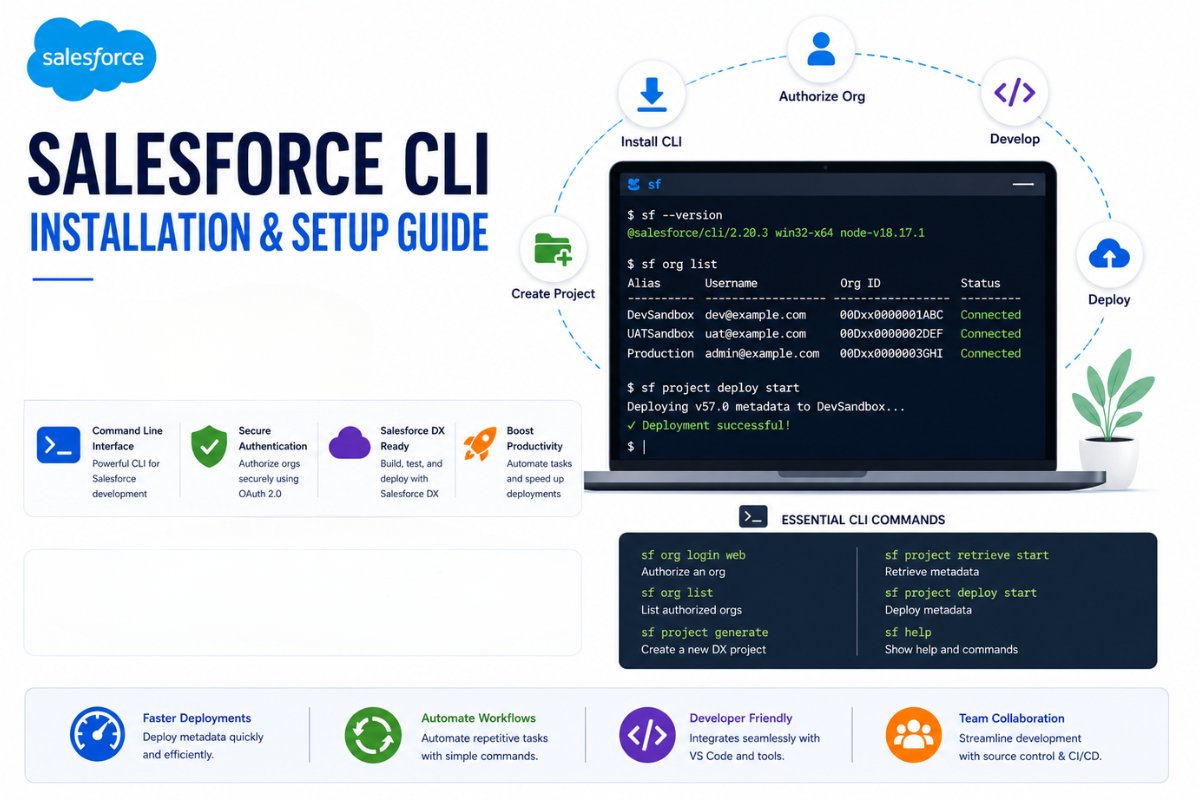
Additionally, advanced developers often use it together with our Salesforce CLI installation and setup Guide for deployments and project management.
Salesforce Inspector vs Developer Console
Many beginners wonder whether Salesforce Inspector replaces Developer Console.
The answer is no.
Both tools are useful for different purposes.
Salesforce Inspector Is Best For
- Quick SOQL queries
- Fast exports
- Metadata inspection
- Record troubleshooting
- Viewing hidden fields
Developer Console Is Best For
- Apex debugging
- Log analysis
- Code execution
- Advanced development tasks
Most Salesforce professionals use both tools together.
Limitations of Salesforce Inspector
Although Salesforce Inspector is powerful, it still has some limitations.
Browser Dependency
The extension mainly works with Chrome-based browsers.
Salesforce Permissions Still Apply
You can only access records and fields allowed by your Salesforce permissions.
Not a Full IDE
Salesforce Inspector helps with quick tasks, but it does not replace tools like VS Code or Salesforce CLI.
Best Practices for Using Salesforce Inspector
To use Salesforce Inspector effectively:
- Use Sandbox orgs for testing
- Avoid unnecessary production changes
- Export backups before bulk updates
- Use selective SOQL queries
- Monitor API usage regularly
Additionally, always keep the extension updated to stay compatible with new Salesforce releases.
Final Thoughts
The Salesforce Inspector Chrome Extension is one of the most useful productivity tools in the Salesforce ecosystem.
It helps admins and developers:
- Run SOQL queries faster
- Export Salesforce data easily
- Inspect metadata quickly
- View hidden field values
- Troubleshoot records efficiently
Most importantly, it allows you to work directly inside Salesforce without constantly switching between multiple tools.
If you work with Salesforce regularly, learning Salesforce Inspector is absolutely worth it.